
MCP tool permissions
You’ve added an MCP server, and its tools don’t show up in Team or Public sessions. That’s by design. Team and Public start with no access to a new server, while Personal gets every tool at Auto. This guide covers granting tools per audience and setting how each one is approved.
For the full TUI and CLI reference, see netclaw mcp. For the config schema, see MCP servers. For how approval modes and prompts work, see How tool approvals work.
Before you begin
Section titled “Before you begin”- At least one MCP server added with
netclaw mcp add, and the daemon running. Runnetclaw mcp listand confirm the server showsconnected. - Familiarity with netclaw’s three audiences. Personal is the TUI, web client and headless chat. Team and Public are assigned per channel, webhook route or reminder.
How audience defaults work
Section titled “How audience defaults work”netclaw mcp add seeds each audience:
| Audience | Servers allowed | Tools granted | Default mode for the server |
|---|---|---|---|
| Personal | All | All | Auto |
| Team | None until listed in AllowedMcpServers | None | Approval |
| Public | None until listed in AllowedMcpServers | None | Deny |
You opt Team and Public in server by server and tool by tool. Personal is open by default, so review it first if the server can write or delete.
Running netclaw mcp add for a server that already exists (the name matches without regard to case) updates its connection and keeps its grants, approval modes and enabled state. netclaw mcp remove also clears the server’s OAuth tokens, grants, overrides and saved approvals, so a re-added server starts from the seeds above.
Grant permissions with the TUI
Section titled “Grant permissions with the TUI”netclaw mcp permissionsPick a server
Section titled “Pick a server”The editor opens on the server list.
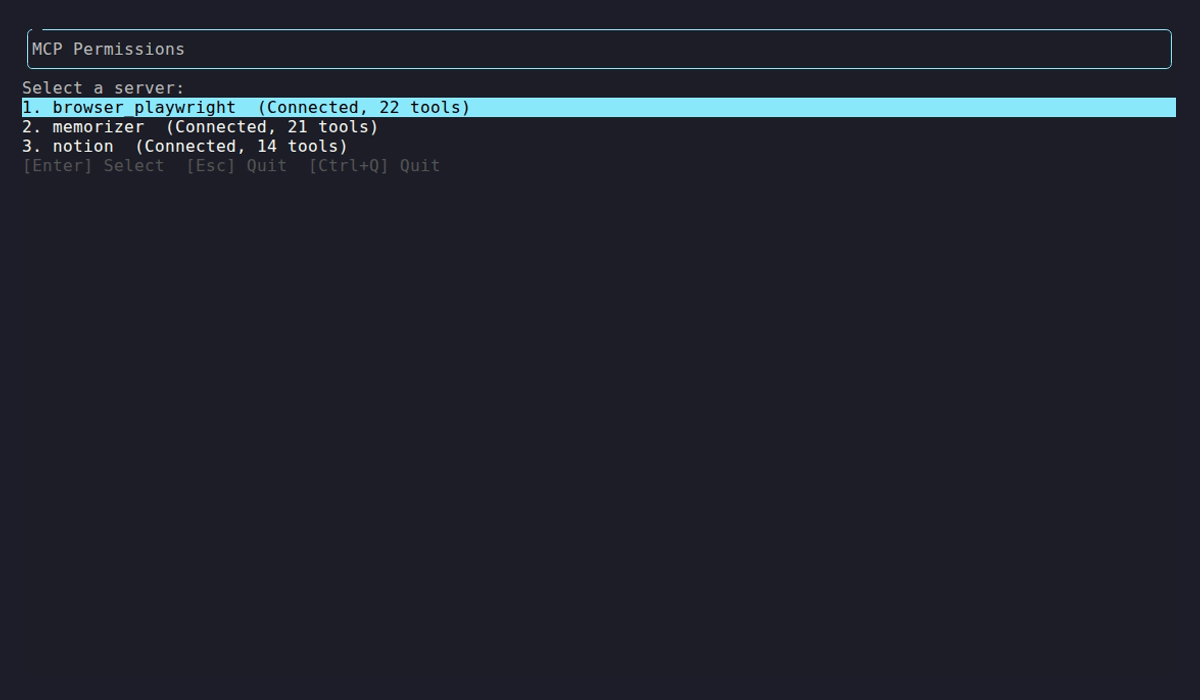
The server list shows connection status and tool count, one row per server. Select one to manage its grants.
Grant tools per audience
Section titled “Grant tools per audience”Select a server to open its tool grid.
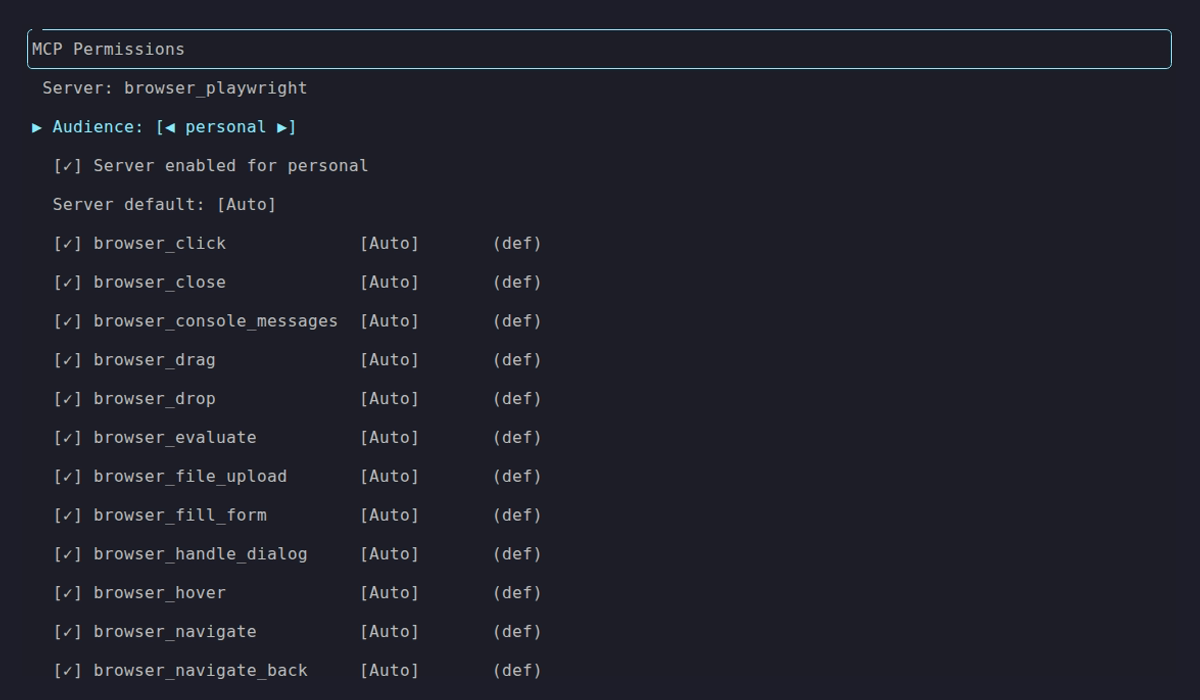
Personal with every tool granted and Auto mode. The footer lists [E] Disable, which turns the server off for this audience. Use the left and right arrows on the Audience row to switch between Personal, Team and Public.
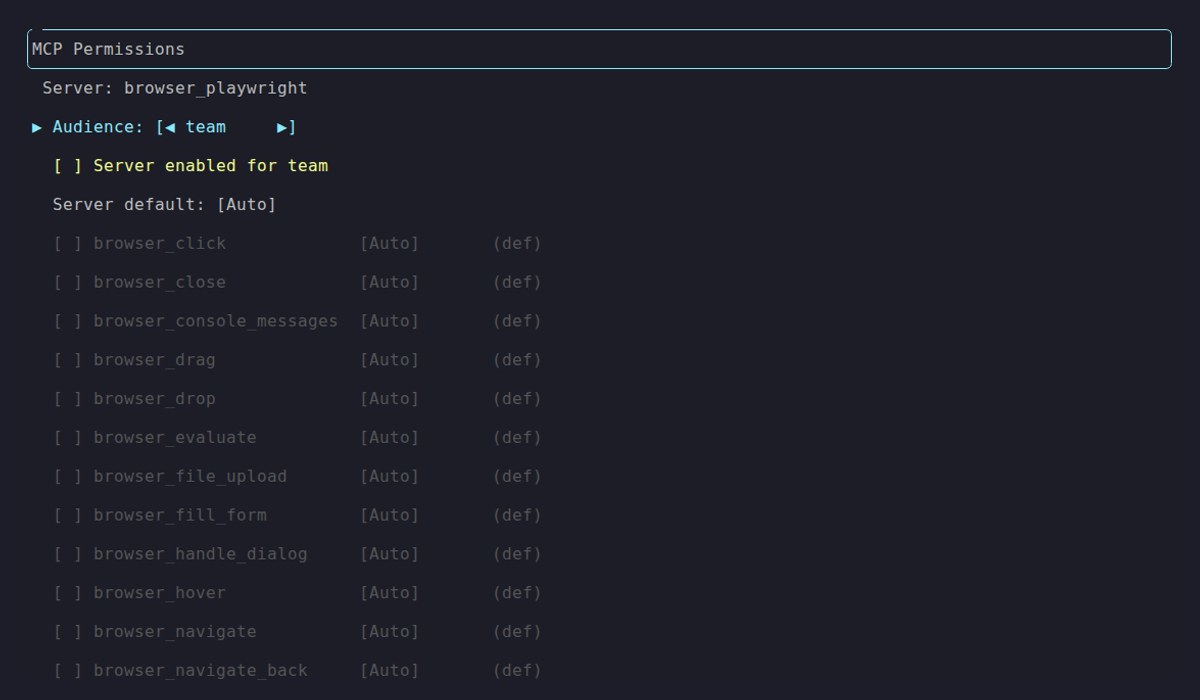
Team with the server not enabled and nothing granted, and Approval as the server default. Its footer reads [E] Enable all, and pressing it asks before it grants every tool. Public starts the same way, with Deny.
To open a server for Team:
- Press
Eto enable the server for this audience. Enabling grants every tool, so it asksGrant all 10 tools on 'demo' to team?. PressYto grant, orNto cancel. - Press
Ato toggle all tools (it asks again before granting them all), orSpaceon individual tools to trim the list. - Press
Mto cycle the server’s default mode (Auto, Approval, Deny). - Press
Pon a tool row to set a per-tool mode override. - Press
Enter, thenYto confirm the save.
Saving writes ~/.netclaw/config/netclaw.json, and the daemon restarts itself to apply it. Enabling a server replaces a trimmed grant list with every tool, which is why E asks first. Check the tick list before you confirm the save.
Grant permissions in JSON
Section titled “Grant permissions in JSON”For automation or version-controlled config, edit netclaw.json directly.
Enable a server for an audience by adding it to AllowedMcpServers:
{ "Tools": { "AudienceProfiles": { "Team": { "McpServersMode": "Allowlist", "AllowedMcpServers": ["memorizer", "notion"] } } }}Grant specific tools with McpServerToolGrants. A server with no entry in this map passes all its tools through, and an empty list passes none:
{ "Tools": { "AudienceProfiles": { "Team": { "McpServersMode": "Allowlist", "AllowedMcpServers": ["notion"], "McpServerToolGrants": { "notion": ["notion-search", "notion-fetch", "notion-create-pages"] } } } }}Team users now see only notion-search, notion-fetch and notion-create-pages. Every other Notion tool is invisible to the model.
Grant permissions with the CLI
Section titled “Grant permissions with the CLI”For quick changes, skip the TUI:
# Grant specific tools to Teamnetclaw mcp tools notion --audience team \  --grant "notion-search,notion-fetch,notion-create-pages"
# Take back a grantnetclaw mcp tools notion --audience team --revoke "notion-create-pages"
# Snapshot every discovered tool into grantsnetclaw mcp tools memorizer --snapshot
--grant opens the server for the audience as well: if it isn’t in AllowedMcpServers yet, the command adds it, and the grant list becomes exactly the tools you named. The output says which tools the audience can call and in which mode. Granting calculate and hash_text on a server called demo prints:
Updated Team profile for 'demo': granted 2 tool(s). 2 total granted.Also allowed server 'demo' for Team.Team can now call: calculate (mode: Approval), hash_text (mode: Approval)If the server’s default for that audience is Deny, which is where Public starts, the tool is granted but can’t run. The command says so and names the setting to change (ApprovalPolicy.McpServerDefaults.<server>).
--revoke and --snapshot need the server to be allowed already. For an audience that doesn’t allow it they print Server 'notion' is not allowed by the Public audience profile, exit 1 and change nothing.
Set approval modes
Section titled “Set approval modes”A granted tool still has a mode that decides whether it runs on its own:
| Mode | Behavior |
|---|---|
Auto | Runs immediately, no prompt |
Approval | Prompts a person before each run unless a saved grant covers it |
Deny | Always blocked, nothing offered |
Netclaw picks the mode in this order, and the first match wins:
- An exact
ToolOverridesentry, keyedserver/tool(for examplenotion/notion-delete-page). The model-facingserver__toolspelling works too. - The server’s
McpServerDefaultsentry. - The audience’s
DefaultMode, which isAutounless you set it.
Keys match without regard to case, and when two keys differ only by case the stricter mode wins. A key that contains a : is ignored with a startup warning, and netclaw doctor reports it as an error. Write the tool as server/tool or server__tool.
Auto for reads, Approval for writes
Section titled “Auto for reads, Approval for writes”{ "Tools": { "AudienceProfiles": { "Personal": { "ApprovalPolicy": { "McpServerDefaults": { "notion": "Auto" }, "ToolOverrides": { "notion/notion-delete-page": "Approval", "notion/notion-update-page": "Approval" } } } } }}Tools discovered on a server later inherit its McpServerDefaults entry. A server set to Approval makes every tool on it ask first unless you add an exact ToolOverrides entry:
"McpServerDefaults": { "browser_playwright": "Approval"}To stop prompts for one server or tool, see Reduce or turn off approval prompts.
Answering a prompt for an MCP tool
Section titled “Answering a prompt for an MCP tool”A prompt for an MCP tool offers Once, This chat, Always allow this tool and Deny. Always allow this tool saves a grant for that one tool and audience in ~/.netclaw/config/tool-approvals.json. Shell prompts also offer folder and repository scopes, which an MCP tool doesn’t have. How tool approvals work covers all six choices. Manage saved grants with netclaw approvals, and pre-approve one with the canonical tool name as the phrase:
netclaw approvals trust-verb notion/notion-search --tool notion/notion-searchAny other phrase for an MCP tool is refused with exit 1, because a grant for it could never match. The error prints the command that works. Add --audience team to grant it for Team instead of Personal.
Unattended runs
Section titled “Unattended runs”Reminders, webhooks and netclaw chat -p can’t show a prompt. An MCP tool set to Auto runs, a saved grant covers a call, and anything that would prompt is denied with approval_required_unattended. See Run reminders, webhooks and scripts unattended.
Verify it works
Section titled “Verify it works”After changing permissions, give the daemon a few seconds to restart itself, then confirm:
netclaw mcp tools notion --audience teamThe output lists each tool on the notion server with a marker per audience: ✓ for a tool you granted, ✱ when all tools pass because the server has no grant list, and - when it’s blocked, or when Personal has it on Deny. The marker reflects the grant list only. It doesn’t show whether the server is in AllowedMcpServers, or approval modes. Confirm the server is listed with jq '.Tools.AudienceProfiles.Team.AllowedMcpServers' ~/.netclaw/config/netclaw.json, and check modes in ApprovalPolicy or in the TUI.
Troubleshooting
Section titled “Troubleshooting”Tools blocked for Team or Public after granting
Section titled “Tools blocked for Team or Public after granting”Symptom: the server is connected but Team sessions can’t use its tools. Cause: one of three gates is closed. Fix: check in order:
- Is the server in
AllowedMcpServersfor the audience, or isMcpServersModeset to"All"? - Does
McpServerToolGrantslist the tool? A server with an empty list passes none, and a server with no entry passes all. - Is the tool set to
DenyinToolOverrides, or is the server’sMcpServerDefaultsentryDeny? A denied tool is blocked even if granted.
Run netclaw mcp tools <server> --audience team to see what’s granted. It can’t tell you about gate 1, so check AllowedMcpServers yourself.
netclaw mcp list shows awaiting auth
Section titled “netclaw mcp list shows awaiting auth”Symptom: the server is listed as awaiting auth. Cause: it needs OAuth or a token before netclaw can discover tools. Fix: run netclaw mcp auth <name>, then retry your grants.
A prompt never appears in automation
Section titled “A prompt never appears in automation”Symptom: a reminder or webhook run fails with approval_required_unattended. Cause: nobody can answer a prompt in an unattended run. Fix: set the tool or server to Auto for the audience, save an “Always allow this tool” grant from a chat with the same audience, or accept that it doesn’t run unattended.
GrantCategory in the server entry changes nothing
Section titled “GrantCategory in the server entry changes nothing”Symptom: you set GrantCategory on an MCP server and permissions didn’t change. Cause: authorization doesn’t read it. Fix: control access with AllowedMcpServers, McpServerToolGrants and the ApprovalPolicy keys on this page.
A saved approval isn’t matching
Section titled “A saved approval isn’t matching”Symptom: you answered Always allow this tool and it still prompts. Cause: the grant belongs to one audience, and the call came from another. Or the store is unavailable. Fix: run netclaw approvals list --tool <server>/<tool> and check the audience. If every call that needs a grant fails with approval_store_unavailable, the grant file is malformed. See netclaw approvals.
Related pages
Section titled “Related pages”netclaw mcp- TUI keybindings and CLI subcommands- MCP servers - server schema, transports and OAuth setup
- How tool approvals work - modes, outcomes and what each prompt answer saves
- Reduce or turn off approval prompts - stop prompts for a server or tool
- Connect an OAuth MCP server - sign in to a remote server, then control what its tools can do
- Hardening - production lockdown, including MCP policy
Resources
Section titled “Resources”- Model Context Protocol specification - the wire protocol behind MCP tool servers
- MCP server registry - community-maintained list of servers
- Notion MCP server - the official Notion server for search, fetch and page management
 Built by Petabridge