Discord
netclaw connects to Discord over the Gateway WebSocket API, which means outbound connections only and no public URL. You create a Discord bot, give netclaw one token, and it shows up in your server and answers in threads.
Prerequisites
Section titled “Prerequisites”- netclaw installed and initialized (
netclaw init) - A Discord server where you have the Manage Server permission
- Developer Mode turned on in Discord, so you can copy IDs
Create a Discord bot
Section titled “Create a Discord bot”Open the Discord Developer Portal and create an application.
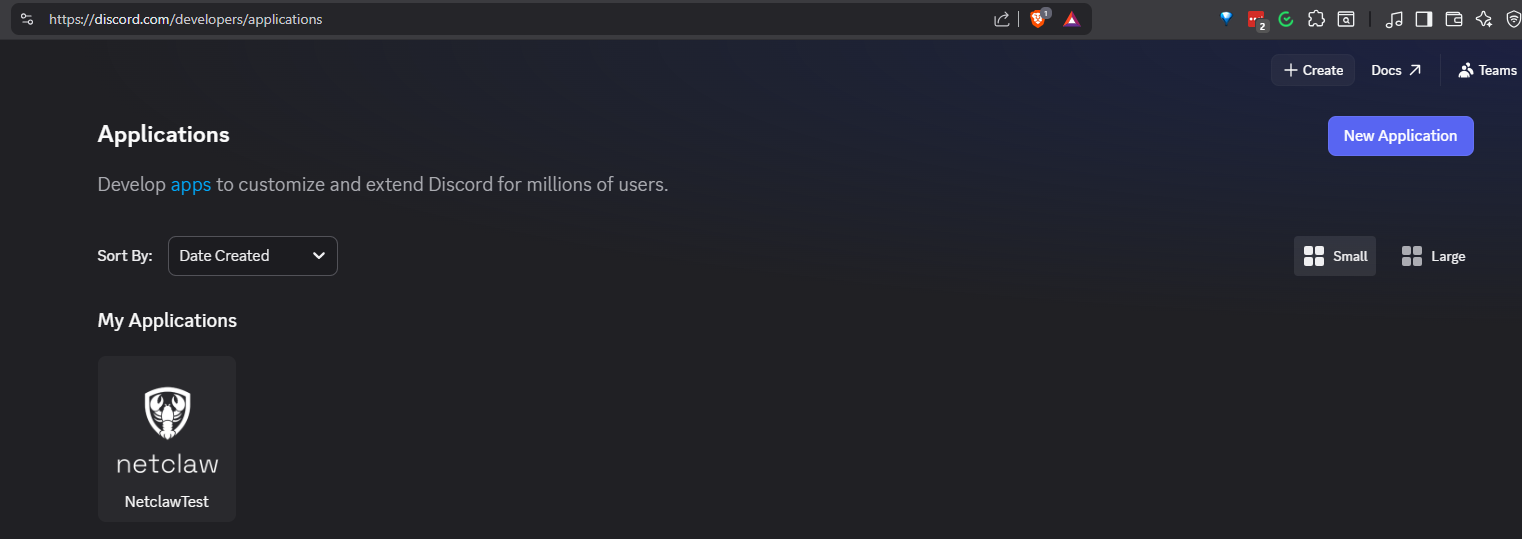
The Applications page lists your apps and has the New Application button.
1. Create the application
Section titled “1. Create the application”Click New Application, name it, and click Create.
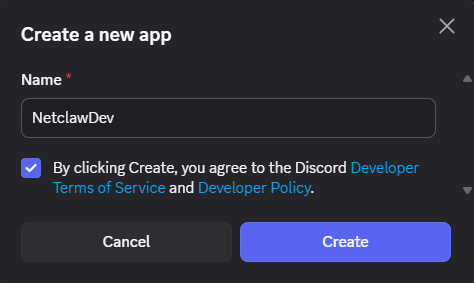
The name you pick here is what members see on the bot.
2. Copy the bot token
Section titled “2. Copy the bot token”Open Bot in the sidebar, click Reset Token, and copy the token right away. Discord shows it once.
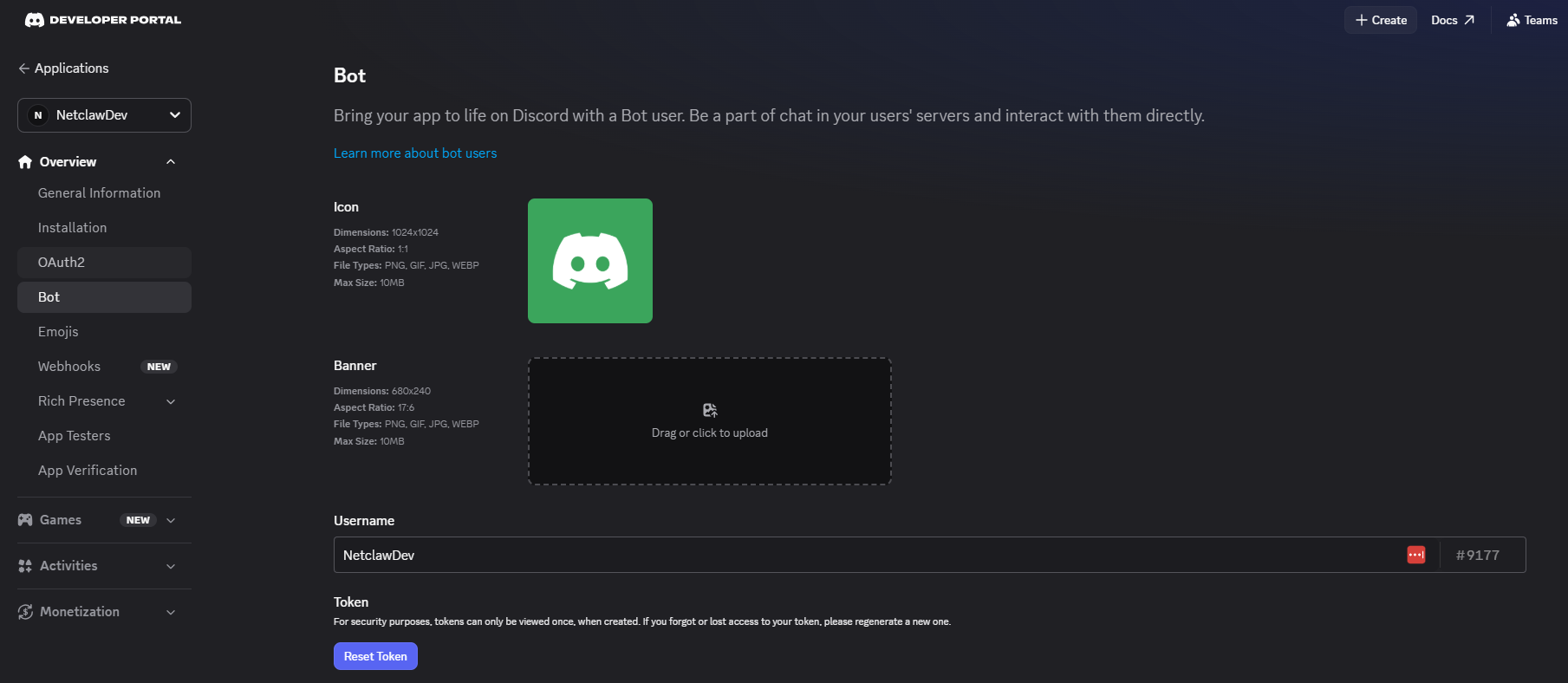
If you lose it, reset it here and update netclaw with the new value.
3. Enable Message Content Intent
Section titled “3. Enable Message Content Intent”Scroll to Privileged Gateway Intents and turn on Message Content. It’s the only privileged intent netclaw needs, so leave Server Members and Presence off. Without it netclaw receives message events but can’t read their text, except in DMs and when the message mentions the bot.
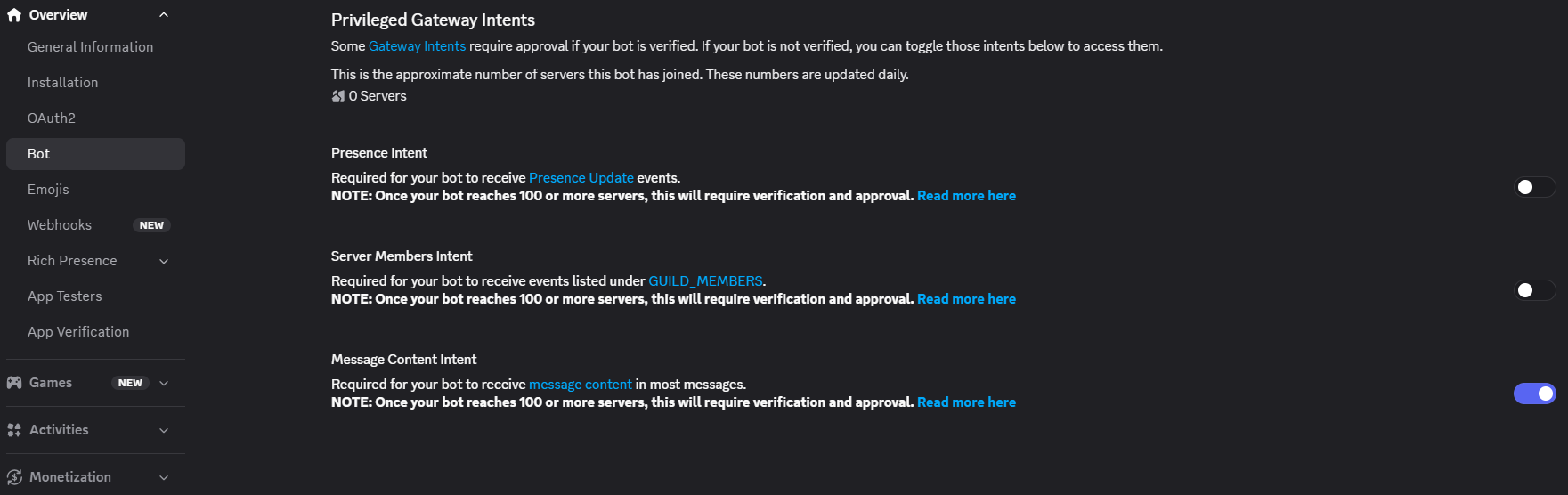
The Message Content toggle sits at the bottom of the privileged intents list.
4. Set OAuth2 scopes and permissions
Section titled “4. Set OAuth2 scopes and permissions”Open OAuth2 > URL Generator and check the bot scope.
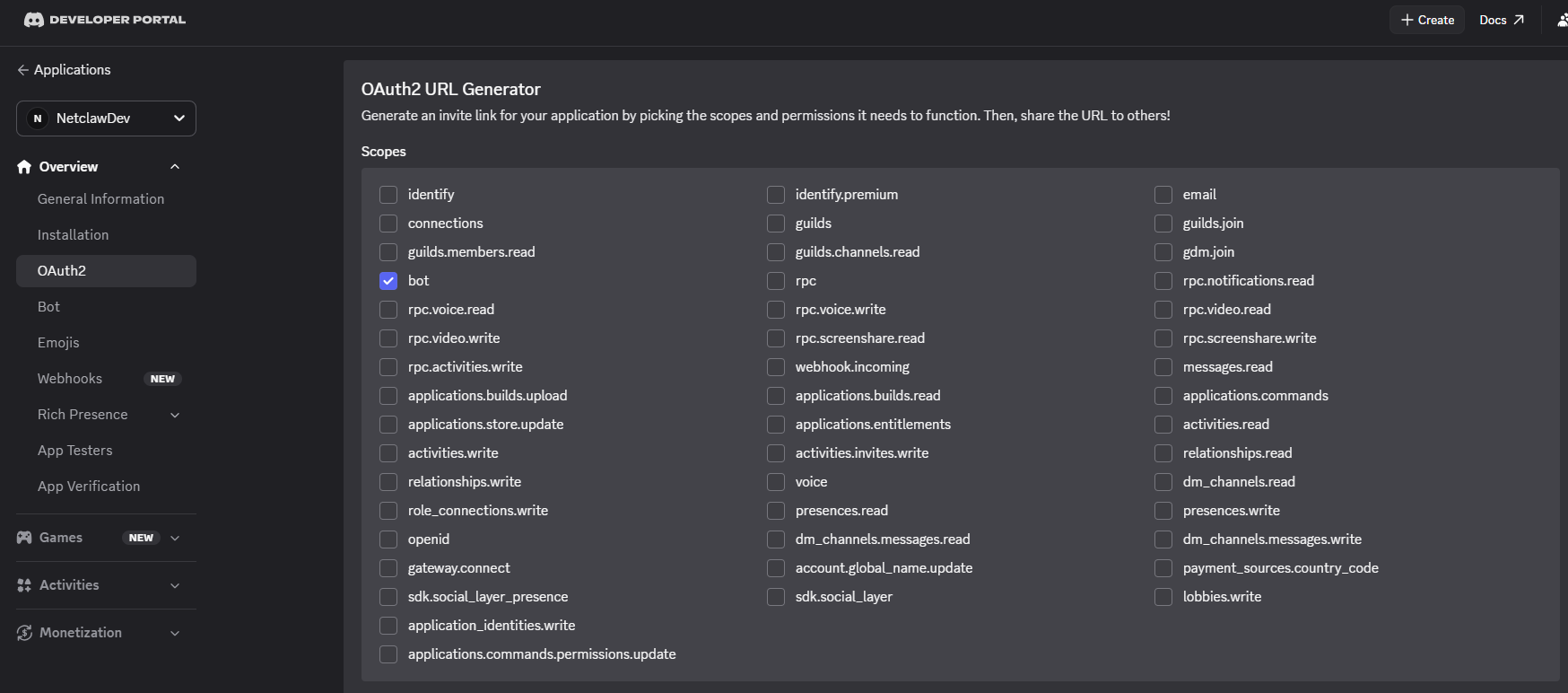
Then select the bot permissions.
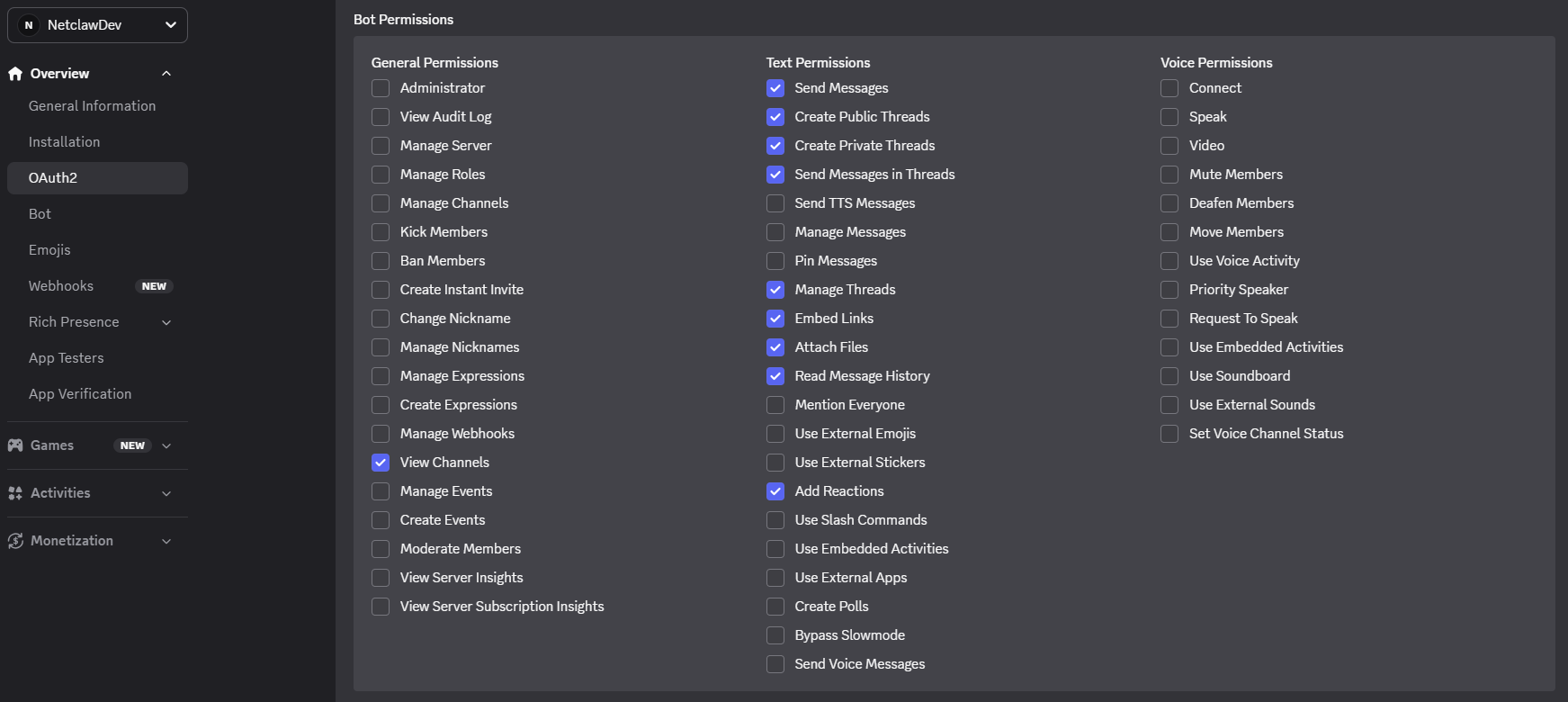
The permissions netclaw uses:
| Permission | Why |
|---|---|
| Send Messages | Post replies |
| Create Public Threads | Open a thread on the first reply |
| Send Messages in Threads | Reply inside threads |
| Manage Threads | Rename a thread to the session title. Discord normally lets a thread’s creator rename it, so this may be unnecessary. We haven’t tested without it. |
| Read Message History | Backfill thread history after a restart |
| Attach Files | Upload files the agent produces |
The checklist in the screenshot also ticks View Channels, Create Private Threads, Embed Links and Add Reactions. netclaw doesn’t call Create Private Threads, Embed Links or Add Reactions, so you can leave those off. Keep View Channels on so the bot can see the channels you add it to. The table is the source of truth for what netclaw needs.
5. Install the bot to your server
Section titled “5. Install the bot to your server”Copy the generated URL at the bottom of the page.

Open it in a browser. Discord asks which server to add the bot to. Pick yours and click Continue.
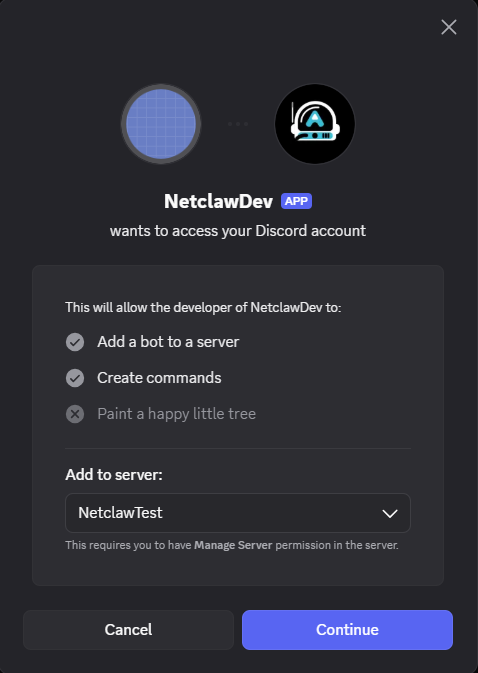
The server list only offers servers where you have the Manage Server permission.
Discord then lists the permissions the bot is requesting. Check they match step 4 and click Authorize.
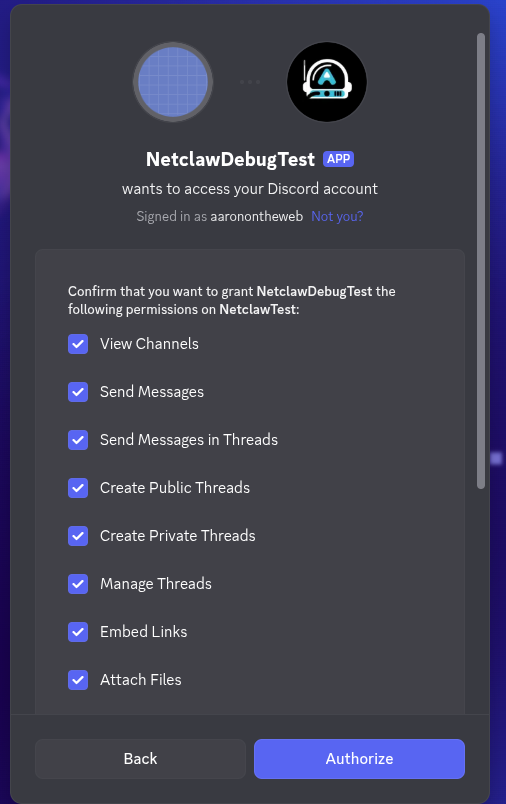
The bot appears in the member list. It shows as online once the daemon is running.
6. Set Installation to None
Section titled “6. Set Installation to None”Under Installation in the sidebar, set the install method to None. That stops people installing the bot to other servers from the app directory.
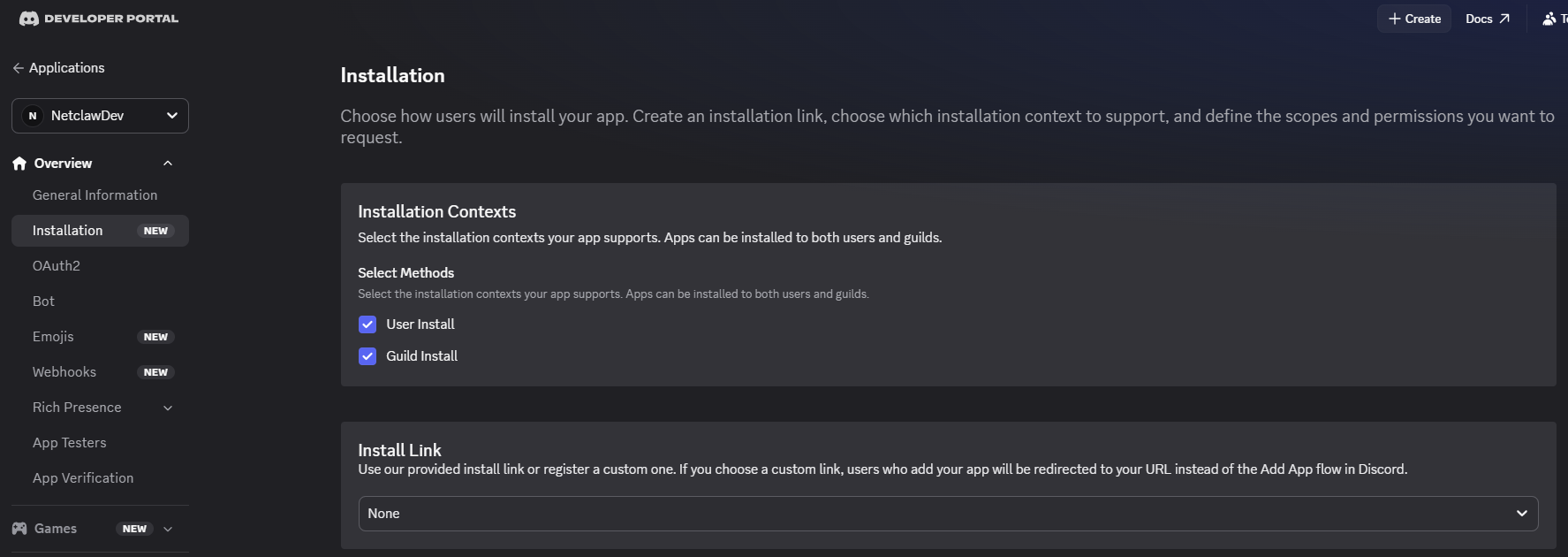
If you want others to install through a link you control, choose Discord Provided Link instead.
Configure netclaw
Section titled “Configure netclaw”Run netclaw config, open Channels, enable Discord, and enter the bot token. netclaw stores it encrypted and saves the config.
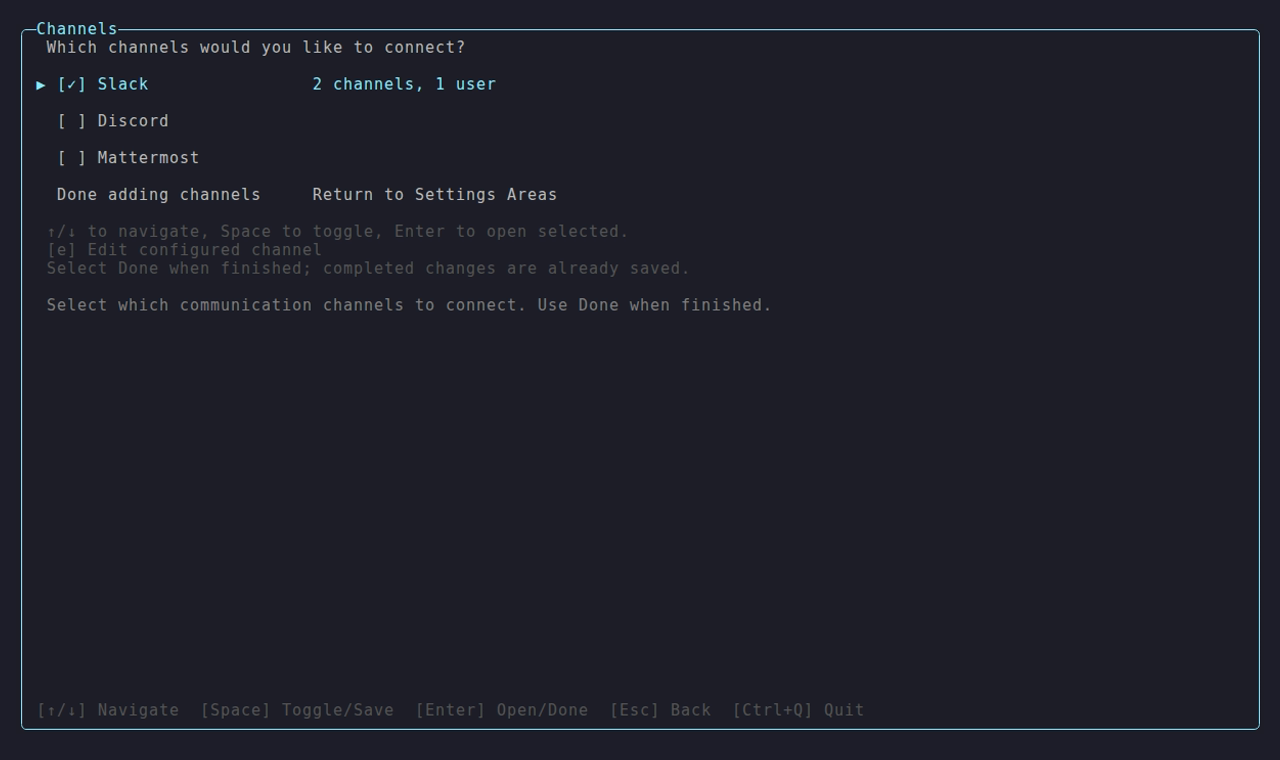
The Channels area lists Slack, Discord and Mattermost with a checkbox each. Once an adapter is set up, its row also shows how many channels and users it allows.
Manual setup
Section titled “Manual setup”For scripted or headless installs, store the token with netclaw secrets:
netclaw secrets set Discord.BotToken your-bot-tokenThen enable Discord in ~/.netclaw/config/netclaw.json:
{ "Discord": { "Enabled": true, "DefaultChannelId": "123456789012345678" }}Environment variables work too, with list entries indexed from zero:
export NETCLAW_Discord__BotToken="your-bot-token"export NETCLAW_Discord__Enabled="true"export NETCLAW_Discord__AllowedChannelIds__0="123456789012345678"An edit to netclaw.json restarts the daemon by itself. A vault or environment change needs a restart you run:
| Where it runs | Restart |
|---|---|
| Native | netclaw daemon stop, then netclaw daemon start |
| systemd user unit | systemctl --user restart netclaw |
| Docker | docker restart <container> |
How channel IDs are stored
Section titled “How channel IDs are stored”Enter channel names or IDs, comma-separated, in netclaw config → Channels. netclaw resolves each against the Discord API and saves the canonical ID. AllowedChannelIds holds IDs, never display names. A name that can’t be resolved stays verbatim with a warning and matches nothing until the bot can see the channel, then a background refresh rewrites it to the ID. A channel added one at a time is rejected on the spot if it doesn’t resolve, and a real auth or network failure blocks the whole save.
All config fields
Section titled “All config fields”| Field | Type | Default | Description |
|---|---|---|---|
Enabled | bool | false | Turn on Discord |
BotToken | string | - | Bot token from the Developer Portal. Store with netclaw secrets set. |
DefaultChannelId | string | - | Channel ID that’s allowed without being listed in AllowedChannelIds |
MentionOnly | bool | true | In channels, answer only when @-mentioned |
AllowDirectMessages | bool | false | Accept DMs |
MentionRequiredInDm | bool | false | Require an @-mention even in DMs |
MentionRequiredInThreadByChannel | object | {} | Channel ID to bool. true makes a thread reply in that channel need an @-mention. See Mention behavior. |
AllowedChannelIds | string[] | [] | Channel allow-list. Empty with no default denies every channel message. |
AllowedUserIds | string[] | [] | User allow-list. Empty accepts everyone in allowed channels. |
ChannelAudiences | object | {} | Per-channel audience overrides. Keys are channel IDs or "dm". Values are "personal", "team" or "public". |
The token lives in ~/.netclaw/config/secrets.json, encrypted at rest.
Access control
Section titled “Access control”Discord ACL is default-deny. Three settings decide who talks to the bot and where.
Channels
Section titled “Channels”The bot answers only in channels that pass the allow-list. DefaultChannelId allows one, AllowedChannelIds allows more, and if both are empty every channel message is denied. That’s the number one setup mistake.
{ "Discord": { "DefaultChannelId": "123456789012345678", "AllowedChannelIds": ["234567890123456789", "345678901234567890"] }}To find a channel ID with Developer Mode on, right-click the channel and choose Copy Channel ID.
AllowedUserIds restricts who gets answers. Empty means everyone in an allowed channel. Non-empty means only the listed users, and everyone else is dropped silently. To copy a user ID, right-click the user and choose Copy User ID.
Listed users are TrustedInternal in the security model, and everyone else is UntrustedExternal.
Direct messages
Section titled “Direct messages”DMs are off by default. Turn them on with "AllowDirectMessages": true. Users then write without a mention, because MentionRequiredInDm defaults to false. Each user gets one long-running DM session, unlike channels, where each root message starts a new session.
Audience overrides
Section titled “Audience overrides”Audience resolves per message: ChannelAudiences[channelId] first, then ChannelAudiences["dm"], then a fallback. The fallback is Team for a channel listed in AllowedChannelIds or a user listed in AllowedUserIds, and Public for everything else. A channel allowed only through DefaultChannelId is Public unless you also list it in AllowedChannelIds or set ChannelAudiences for it.
{ "Discord": { "ChannelAudiences": { "123456789012345678": "team", "dm": "personal" } }}A channel-ID entry beats "dm", and an unrecognized value denies the message instead of falling back. Security model maps audiences to tools.
Behavior in Discord
Section titled “Behavior in Discord”Threads and sessions
Section titled “Threads and sessions”When someone messages the bot in a channel, netclaw creates a public thread on its first reply and continues there. The thread starts as “Netclaw” and is renamed once the model produces a session title.
A thread is freed from memory when its session goes idle, after Session.IdleTimeout (one hour by default), and a later reply wakes it again. After a daemon restart, netclaw backfills up to 200 messages of thread history so conversations resume.
Mention behavior
Section titled “Mention behavior”MentionOnly: true makes the bot ignore channel messages that don’t @-mention it. netclaw strips the mention before the text reaches the model. These rules sit on top:
- Thread replies: once a thread has an active session, replies in it don’t need a mention, unless
MentionRequiredInThreadByChannelistruefor that channel. - Restart recovery: if the daemon restarts and someone continues a thread, netclaw recreates the session from the thread’s history.
MentionRequiredInThreadByChannel maps channel IDs to true or false:
{ "Discord": { "MentionRequiredInThreadByChannel": { "123456789012345678": true } }}With the rule on, an un-mentioned thread reply is ignored (ThreadMentionRequired in the log). The next message that mentions the bot makes netclaw re-read everything posted since its last reply, so it answers with full context. A channel with no entry behaves as false. The rule doesn’t apply to DMs.
In netclaw config → Channels, Space toggles Require @mention on the selected channel. A channel you add there starts with the rule on if its audience is team or public, and off if it’s personal. Only true entries are saved.
Message formatting
Section titled “Message formatting”Discord renders markdown natively. netclaw splits replies longer than 2,000 characters at newline boundaries.
Tool approval
Section titled “Tool approval”When a tool call needs approval, netclaw posts a prompt with buttons in the thread. It shows the tool, the action and the pattern. The choices are Once, This chat, Always here, Always anywhere, Deny, and This repository when it applies. A command netclaw can’t parse cleanly gets only Once and Deny. How tool approvals work explains what each one grants. Only the user whose request triggered the prompt can answer it.
If posting the buttons fails for a prompt from the main agent, netclaw falls back to a text prompt, and you reply with the letter next to an option. A prompt from a sub-agent has buttons only and no letter fallback. If its buttons can’t be posted, netclaw refuses the request and the call doesn’t run. After a decision, netclaw edits the original message with a check mark or a denied icon. A prompt that nothing can answer any more is edited to remove the buttons and say why, for example This approval request was withdrawn because Netclaw restarted before the task finished. Nothing ran.
Reminders
Section titled “Reminders”Reminders deliver to a guild text channel or to a user’s DM. Accepted targets:
| Target | Delivers to |
|---|---|
<#123456789012345678> | A channel, by mention |
channel:123456789012345678 | A channel, by ID |
<@123456789012345678> or <@!123456789012345678> | A user’s DM, by mention |
dm:123456789012345678 or @123456789012345678 | A user’s DM, by ID |
A bare ID is rejected, because channel IDs and user IDs have the same shape. DM delivery still goes through ACL, so it needs AllowDirectMessages: true and, if you use AllowedUserIds, the user on that list. current_session reminders post back into the thread that set them. That reminder ends when the session admits the fire, and netclaw doesn’t retry a failed post. If the reply post fails for good, the session logs an Error and raises a reminder.delivery.failed alert.
Proactive messaging
Section titled “Proactive messaging”The model can start a conversation with send_channel_message, passing channel_key: discord and a destination (a guild text channel or a DM) from lookup_channel_user or lookup_channel_destination. ACL still applies.
Ignored messages
Section titled “Ignored messages”The bot drops empty messages (no text, no attachments), its own and other bots’ messages, DMs when AllowDirectMessages is off, and un-mentioned channel messages when MentionOnly is on and there’s no active thread.
Verify it works
Section titled “Verify it works”netclaw statusDiscord should show healthy. If it shows disabled or disconnected, see Channel troubleshooting.
Then @-mention the bot in an allowed channel. If it creates a thread and answers, you’re set.
Troubleshooting
Section titled “Troubleshooting”Channel troubleshooting is organized by symptom. The usual ones:
| Symptom | Likely cause |
|---|---|
| Connected but silent | AllowedChannelIds is empty and no DefaultChannelId is set. |
| Messages arrive but the text is empty | Message Content intent is off in the Developer Portal. |
| HTTP 401 at startup | The token is wrong or was reset. |
Startup waits 30 seconds, then disconnected | The gateway never sent READY, often because the bot isn’t in any server. |
| Stopped answering in a thread | MentionRequiredInThreadByChannel is on for the channel. Mention the bot. |
Related pages
Section titled “Related pages”- Slack and Mattermost - the other chat channels
- Channel troubleshooting - fixes by symptom
- How tool approvals work - the approval choices
- Security model - audiences and approval gates
netclaw status- connector health
Resources
Section titled “Resources”- Discord Developer Portal - create and manage your bot
- Discord: Gateway and privileged intents - what Message Content does
- Discord: permissions - permission reference
- Discord: enable Developer Mode - copy channel and user IDs
- Discord Status - check for outages
 Built by Petabridge