
Quickstart
Install netclaw, answer a few setup questions, and talk to your assistant. Allow about five minutes, plus a minute or two on first start while the daemon fetches its memory models. This is the short path with no detours. Your first conversation explains what you see in the chat, and Build your first assistant is the long tutorial that adds tools, memory and a reminder.
Before you begin
Section titled “Before you begin”- A 64-bit Linux, an Apple Silicon Mac or Windows x64. On Linux you also need
curl, the ICU library (libicu) andtzdata. Without ICU the daemon won’t start, and withouttzdatathe identity step rejects every timezone but UTC. See requirements. - About 1 GB of free memory and outbound access to
releases.netclaw.devandhuggingface.co. - An LLM: an API key for one of the eight providers
initlists (Anthropic, OpenAI, OpenRouter and DeepSeek among them), or the address of a server you run, such as Ollama or llama.cpp.
1. Install
Section titled “1. Install”curl -sSL https://releases.netclaw.dev/install.sh | bashThe installer adds netclaw to your PATH for new shells. Load it into this one:
. ~/.netclaw/envOn Windows, use the PowerShell installer and restart your terminal. Check it worked:
netclaw --versionnetclaw 0.28.2 (commit 7419d84, built 2026-10-29T00:09:05Z)2. Run the setup wizard
Section titled “2. Run the setup wizard”netclaw initThe wizard asks for four things:
| Step | You choose |
|---|---|
| Provider | An LLM provider, its credentials or endpoint, and a default model |
| Identity | Agent name, communication style, your name, timezone |
| Security posture | Personal, Team or Public |
| Health check | Nothing. It writes config, starts the daemon and opens chat. |
Team and Public add a fifth step, enabled features. The header says “Step 1 of 5” until you pick a posture, then drops to “of 4” if you chose Personal.
Provider
Section titled “Provider”Press a number to pick a provider, then enter its credentials. For llama.cpp or vLLM, pick OpenAI-compatible and give the server address, with or without /v1: http://llm.example.internal:8080. The endpoint field starts with http://localhost:11434 already in it and your cursor sits at the end, so press Backspace until the default is gone before you type. After a connectivity check you pick a default model.
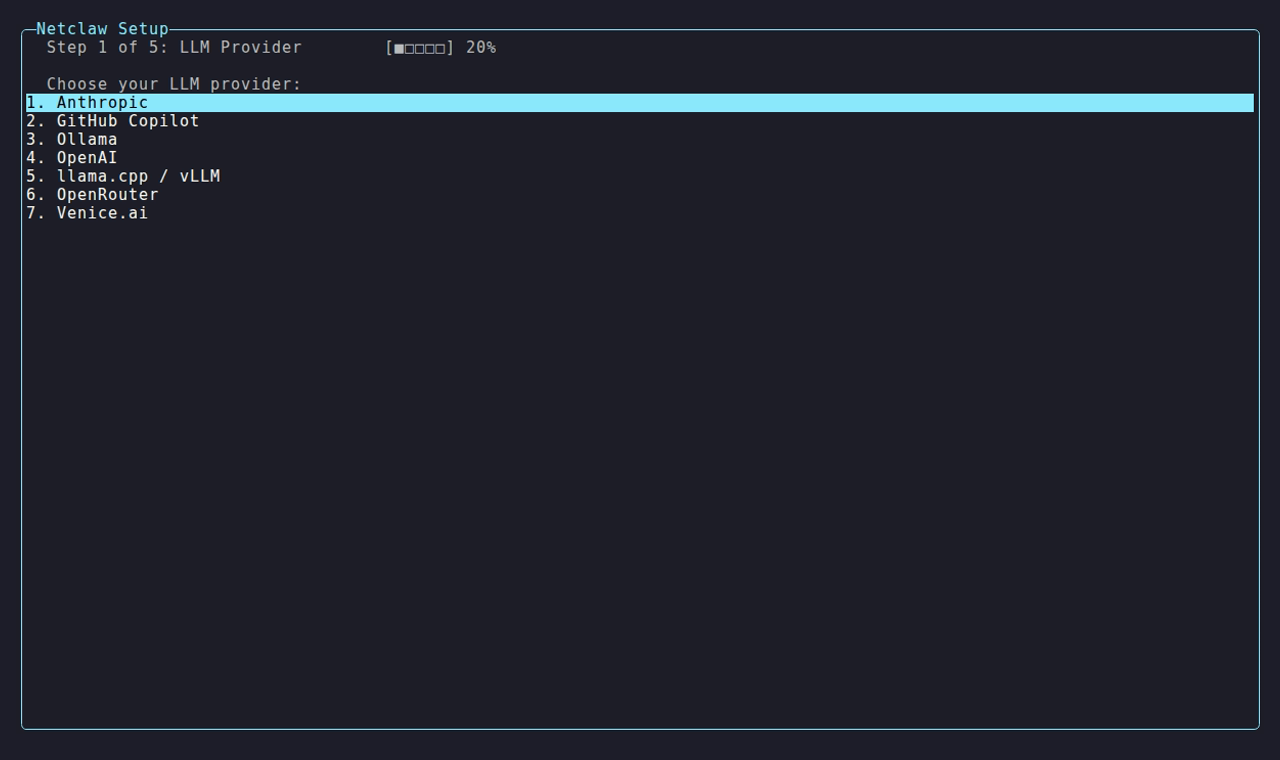
The first screen lists all eight providers, and the counter reads “of 5” until you choose a posture.
Identity and posture
Section titled “Identity and posture”Answer the four identity prompts, then pick Personal for a single-user machine. The timezone must be an IANA id such as America/Chicago. UTC is already filled in. See the security model for Team and Public.
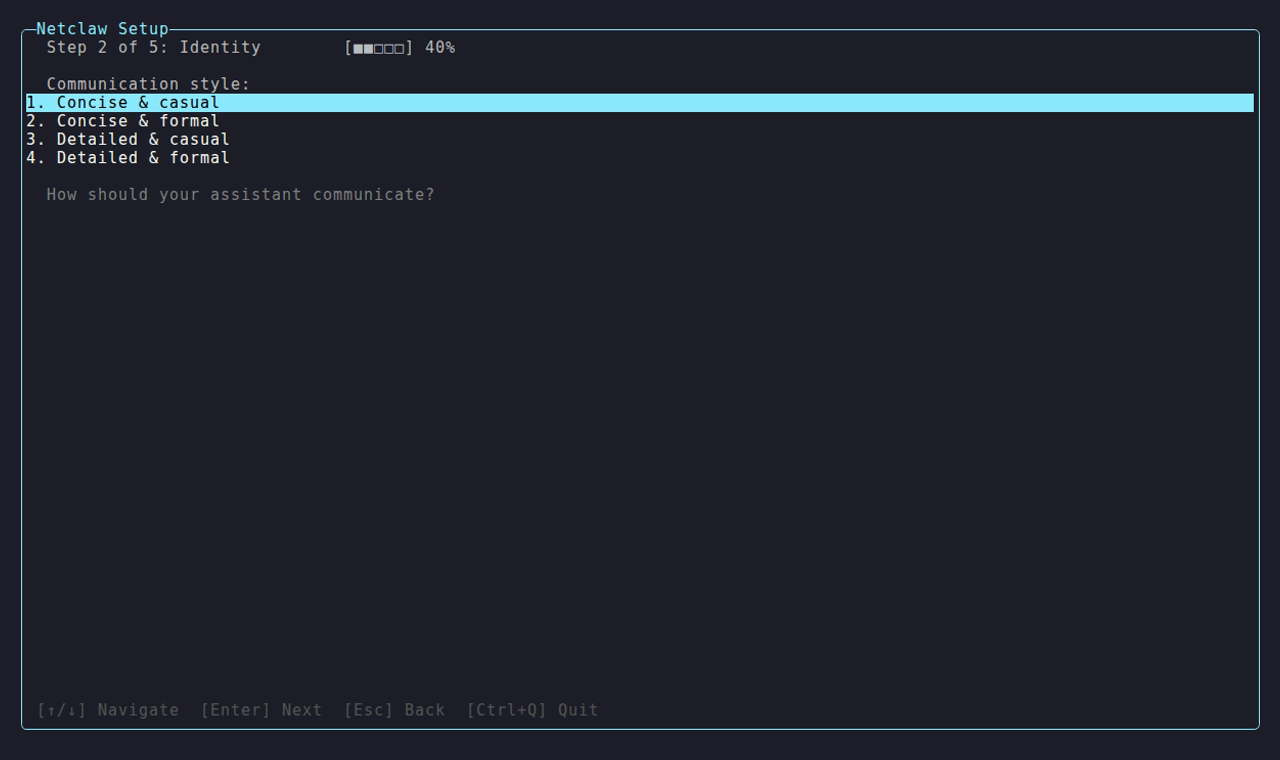
The style you pick here shapes the assistant’s first greeting, and you can redo this step later from netclaw init.

The grey text under the options summarizes what each posture allows. Channels are set up later in netclaw config.
Health check
Section titled “Health check”The wizard writes ~/.netclaw/config/netclaw.json, starts the daemon and checks the provider. A clean run looks like this:
✓ LLM provider configured (OpenAI-compatible (llama.cpp / vLLM / DwarfStar ds4))✓ Model selected (<your model>)✓ Memory backend (SQLite)✓ Configuration written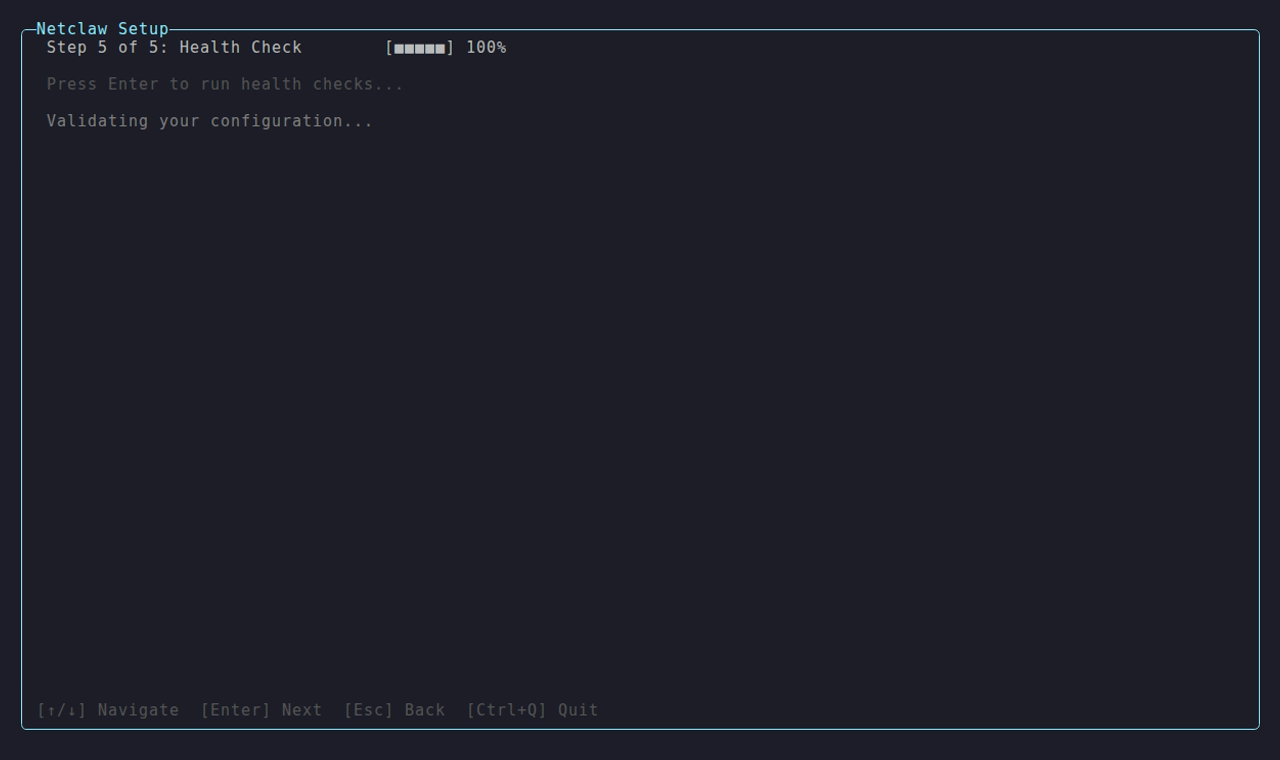
The four checks go green while the daemon applies the new configuration, and the step counter ends at 4 of 4 because this was a Personal setup. This capture used an OpenAI-compatible endpoint serving qwen2:0.5b, so that’s what the first two lines name. Yours name your provider and model. The spinner is the last frame init shows before it opens the chat.
If the daemon fails to start, the last line reads “Setup complete with warnings” and tells you to run netclaw daemon start, then netclaw chat --onboarding. On a bare Linux image the cause is usually a missing libicu. See troubleshooting.
3. Send your first message
Section titled “3. Send your first message”After a clean health check, init opens the chat and your assistant greets you by name and asks what you want to use it for. Answer in plain language. The first reply can take 30 seconds or more on a local model. Press Ctrl+Q to leave.
If init ended with warnings, there’s no greeting. Fix the warning, run netclaw daemon start, then netclaw chat --onboarding. It opens the same conversation.
Verify it works
Section titled “Verify it works”netclaw statusoverall: healthyversion: 0.28.2 (commit 7419d84, built 2026-10-29T00:10:12Z)daemon: PID 3644, uptime 0m 24s, endpoint http://127.0.0.1:5199persistence: Sqlitememory: sqlite (healthy)telemetry: disabledmodel: <your model> (provider: openai-compatible, context: 131,072 tokens)connectors:- discord: disabled (disabled)- mattermost: disabled (disabled)- slack: disabled (disabled)- tui: healthy (enabled)overall: healthy and a reply in the chat mean you’re done. If something looks off, run netclaw doctor. A WARN about a missing secrets.json is normal when your provider needs no API key.
What’s next
Section titled “What’s next”- Your first conversation: what to try, the keys that matter and your first approval prompt
- Build your first assistant: identity, tools, memory and a reminder that reports back
netclaw config: connect Slack, Discord or Mattermost, enable web search, set exposure
Related pages
Section titled “Related pages”- Installation: every platform, update and uninstall
netclaw init: the wizard in full, including re-running it- Self-hosted providers: Ollama, llama.cpp and vLLM settings
netclaw statusandnetclaw doctor: check health when something is wrong
Resources
Section titled “Resources”- Ollama: run models locally with one command
- llama.cpp server: an OpenAI-compatible server for GGUF models
- OpenRouter: one API key for many hosted models
 Built by Petabridge