
Your first conversation
Your first session is where your assistant learns who you are, and where you find out what a tool call and an approval prompt look like. This page explains what you’re looking at: the opening conversation, a tool call, the approval prompt, and the keys that matter. If you haven’t installed yet, the quickstart is the five-minute path. If you’d rather build something start to finish, including memory and a scheduled reminder, follow Build your first assistant.
Before you begin
Section titled “Before you begin”- netclaw is installed and
netclaw initfinished.netclaw statusshould sayoverall: healthy. - You have a provider and model configured.
initdoes that, andnetclaw provideradds more later.
1. Open a chat
Section titled “1. Open a chat”netclaw chatIf init just finished cleanly, you’re already in a chat and your assistant has started talking. Otherwise you get an empty chat with a message box and a key hint line:
[Enter] Send [Ctrl+Enter] Newline [PgUp/PgDn/Wheel] Scroll [Ctrl+Q] Quit | Ready | <your model>The session doesn’t exist until you send your first message. At that point System: Session started. New session. appears. An empty chat you quit without typing leaves nothing behind.
Only the init handoff starts the greeting on its own. To get the same opening conversation from a plain terminal, run netclaw chat --onboarding instead. Or run netclaw chat and say what you want to use it for, and the conversation begins from your message.
2. Tell it what you want
Section titled “2. Tell it what you want”The opening conversation does three things. The assistant introduces itself, asks what you’ll use it for and what good work looks like, and then proposes a short playbook. Answer in plain language. When the proposal looks right, tell it to go ahead and write it.
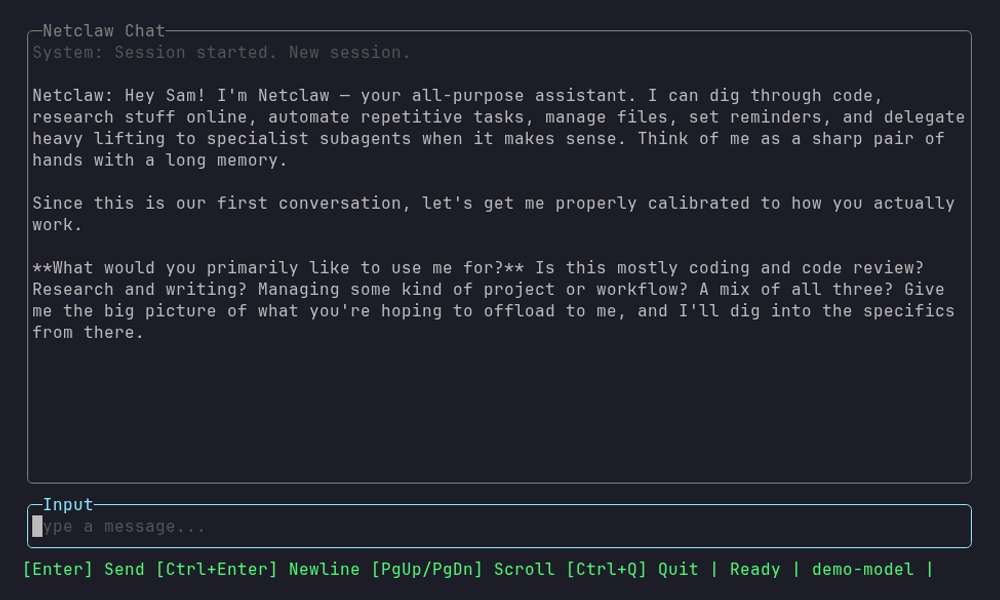
The greeting arrives before you type anything, and the status bar already shows Ready and the model name.
After you confirm, it writes two files and tells you the new playbook applies from your next message:
| File | Holds |
|---|---|
~/.netclaw/identity/SOUL.md | Who it is and who you are: name, style, timezone, preferences |
~/.netclaw/identity/AGENTS.md | What this deployment is for: mission, recurring workflows, delegation, quality checks |
Neither write triggers an approval prompt. They’re plain Markdown that every future session loads, so read them and fix anything the assistant got wrong. See context structure.
Each model call sends your identity files, tool list and history, so the first turn is already about 11,000 input tokens. A local model can take 30 seconds or more to start replying. The status bar shows Generating... and then token counts such as in=11345. That’s prompt processing, not a hang.
3. Ask for something that needs a tool
Section titled “3. Ask for something that needs a tool”Tools show inline as they run. Start with a read-only question:
How much free disk space does this machine have?The assistant runs df -h through shell_execute and answers. You won’t see an approval prompt, because netclaw ships a reviewed list of read-only commands that run without one.
Now ask for something that changes a file:
Use curl to download https://example.com and save it as ~/example.html, then tell me how many bytes it is.4. Answer your first approval prompt
Section titled “4. Answer your first approval prompt”This one does prompt, because curl isn’t on the reviewed list:
System: Approval required for shell_execute curl -sL https://example.com -o ~/example.html && stat -c %s ~/example.html Patterns: curl Options: Once, This chat, Always here, Always anywhere, Deny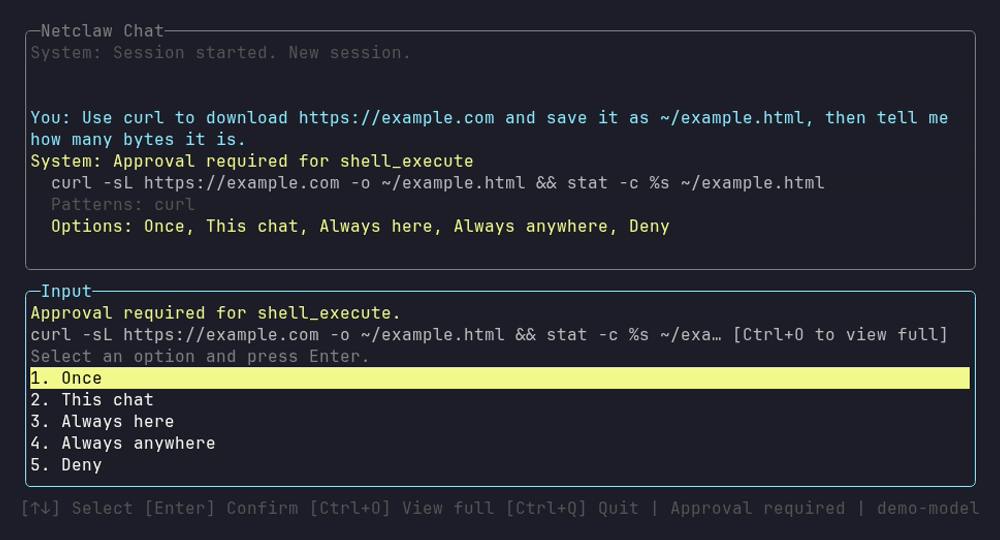
The same prompt as it looks in the TUI. Your download doesn’t run inside a repository, so you get five options. Inside a Git repository there’s a sixth, This repository.
The input box turns into a list. Press a number key to pick an option and it takes effect immediately, with no Enter. Or use the arrow keys and Enter, which confirms the highlighted option (Once, until you move). The assistant carries on once you answer. Once runs this one call and saves nothing, Deny skips it and bans nothing, though the assistant then stops, says what it wanted to do and asks how to continue, and the “Always” options save a grant.
The Patterns: line shows what an “Always” answer would save. Here that’s the prefix curl, so it would cover any curl command. Always here saves the folder the command’s paths point at, not the one you’re standing in (what it covers). Pick Once while you’re learning. Prompts don’t expire, so you can read the command, press Ctrl+O to expand it in full, and take your time. Only the person who started the request can answer.
You can see and undo saved grants any time:
netclaw approvals listnetclaw approvals revoke 'Bash token-prefix "curl" anywhere'The full list of answers, why some prompts offer fewer of them, and how the gates work are in how tool approvals work. If you’re tired of the prompts, see reduce or turn off approval prompts.
5. Teach it something
Section titled “5. Teach it something”Tell it a fact and ask it to remember it:
Remember this: my Proxmox host is called pve1 and nightly backups go to a NAS called vault, mounted at /mnt/vault.The assistant finds its memory tool, saves the note and confirms. Quit, start a new chat and ask for it back, and the answer comes from memory. Build your first assistant walks through that round trip, and the memory model explains how recall works.
Keys that matter
Section titled “Keys that matter”| Key | What it does |
|---|---|
Enter | Send the message |
Ctrl+Enter | Insert a newline |
PgUp / PgDn, mouse wheel | Scroll the history |
Ctrl+Q | Quit the TUI. It’s the only key that quits. It waits up to two seconds for the daemon to confirm your last message, and doesn’t wait for the model. |
Esc | With an approval prompt open, denies it. While the assistant is generating, shows Cancel generation is not supported yet. Otherwise does nothing. |
Ctrl+O | Expand or collapse the full body of a pending approval prompt |
1 to 5, Up / Down, Enter | Choose an option in an approval prompt |
A running turn can’t be cancelled from the TUI today. If a reply is heading the wrong way, wait for it to finish and correct it in the next message.
Slash commands
Section titled “Slash commands”Type / followed by a skill name to run that skill directly. Type an unknown command and netclaw lists what’s available:
Netclaw: Unknown command: /help
Available commands:  /agent-coordination  /netclaw-memory  /netclaw-operations  /netclaw-projects  /run-reminder <reminder id>  /search-citation  /skill-authoring  /subagent-authoring  /web-content-retrieval
There are no built-in /new, /clear or /model commands. See slash commands for what each one does.
Come back later
Section titled “Come back later”Ctrl+Q closes the TUI and leaves the session alive in the daemon. A reply that was still generating keeps going there. Pick it up from the session list, or by ID:
netclaw sessions # TUI: Enter resumes, N starts a new chatnetclaw sessions --once # plain list, then exitnetclaw chat --resume signalr/0c27293335d34bc080996e396058e447History replays when you resume. Sessions also survive a daemon restart, and they come back marked [inactive].
One-shot prompts
Section titled “One-shot prompts”netclaw chat -p sends one prompt and prints the reply:
netclaw chat -p "What's the status line of https://example.com?"Nobody is there to answer an approval prompt in headless mode, so a call that would prompt is denied:
Tool access denied: shell_execute needs approval, and nobody can answer a prompt in an unattended run. Save an "Always" grant for this call in a chat with the same audience ...If the reply starts a sub-agent, -p stays open and prints [subagent:waiting] N open: <run ids> until the child’s result has been handled. A failed turn exits 1 with [turn:failed] category=<model|infra> kind=<Kind> on stderr. Answer an “Always” option for that call in an interactive chat and headless runs can use it. The same rule applies to reminders and webhooks. See unattended runs.
Related pages
Section titled “Related pages”- Build your first assistant: the longer tutorial, ending with a reminder that runs a tool on its own
netclaw chat: every flag, JSON output and named sessions- How tool approvals work: the model behind the prompt
- Slash commands: what each command does
netclaw config: connect Slack, Discord or Mattermost when you’re ready
Resources
Section titled “Resources”- Model Context Protocol: the protocol behind MCP tool servers
- SignalR documentation: the real-time protocol between the CLI and the daemon
 Built by Petabridge