
netclaw mcp
netclaw mcp manages Model Context Protocol servers: add and remove them, sign in to OAuth servers, and decide which tools Personal, Team and Public sessions can call. The page URL says mcp-tools for historical reasons. The command is netclaw mcp, and there is no netclaw mcp-tools.
New servers are open to Personal (every tool at Auto) and closed to Team and Public. Those audiences get no tools until you grant them, with Approval (Team) and Deny (Public) as the server’s default approval mode.
netclaw mcp <subcommand> [options]| Subcommand | What it does | Needs the daemon |
|---|---|---|
add | Add a server | No |
auth | Sign in to an OAuth server | Yes |
list | List servers with live status | Prints the config without it, shows status unavailable and exits 1 |
get | Show one server’s config | No |
remove | Remove a server | No |
enable / disable | Turn a server on or off | No |
permissions | Edit grants and approvals in a TUI | Yes |
tools | Show or script tool grants | Yes |
netclaw mcp with no subcommand, or an unknown one, prints the help text. -h or --help after any subcommand prints help too and changes nothing. netclaw mcp tools --help prints help specific to that command. The other subcommands print the general mcp help.
Config changes made by these commands go to ~/.netclaw/config/netclaw.json, and the daemon restarts itself to apply them. Credentials go to secrets.json.
mcp add
Section titled “mcp add”# stdio (default)netclaw mcp add <name> <command> [args...]netclaw mcp add <name> -- <command> [args...]
# http or ssenetclaw mcp add --transport http <name> <url>Use -- before a stdio command so its own flags aren’t read as mcp add flags. A name can’t start with - and can’t be help.
| Flag | Description | Default |
|---|---|---|
--transport, -t | stdio, http or sse | stdio |
--env KEY=VALUE | Environment variable for the stdio process. Repeatable. Stored in secrets.json. | none |
--header "Key: Value" | HTTP header. Repeatable. Stored in secrets.json. | none |
--client-id <id> | Pre-registered OAuth client ID | none |
--client-secret <secret> | Secret for a confidential OAuth client. Stored encrypted in secrets.json. Requires --client-id and a non-empty value. | none |
--scope <scopes> | OAuth scopes, space-separated | none |
--grant-all | Skip the empty Team and Public grant lists, so every tool passes for any audience that allows the server. Approval defaults are still written. Only applies when the server is new. | off |
--auth | Start the OAuth flow right after adding | off |
Running mcp add on a name that exists updates that server instead of starting over. The command, arguments, URL and OAuth settings come from the new command line. The server’s Team and Public grants, allow-list entries, approval defaults and enabled state stay as they were, and --grant-all is ignored. The output lists what changed:
Updated MCP server 'echo1' (stdio)
Audience grants, approval modes and allow-lists are unchanged.Connection settings: replaced arguments; dropped environment variables (pass the option again to keep it).
Environment variables, headers and the client secret are stored as a set with the connection, so a re-add that leaves out --env, --header or --client-secret drops the stored ones. Pass them again to keep them. To change only a secret, use netclaw secrets set McpServers.<name>.OAuthClientSecret <value> and restart the daemon.
netclaw mcp add --transport stdio --env API_KEY=sk-123 memorizer -- uvx memorizer-mcpnetclaw mcp add --transport http notion https://mcp.notion.com/mcpnetclaw mcp add --transport http --header "Authorization: Bearer tok-..." myapi https://api.example.com/mcpnetclaw mcp add --transport http --client-id CLIENT_ID --client-secret CLIENT_SECRET confidential https://mcp.example.com/mcpThe output confirms the security posture, and for http and sse servers without an Authorization header it points you at mcp auth:
Added MCP server 'notion' (http)
Security: Personal grants all tools (auto-approved). Team/Public grant 0 tools          until you opt in via `netclaw mcp permissions`.Approval defaults: Personal=Auto, Team=Approval, Public=Deny
Next steps:  - If this server requires OAuth, authorize first: netclaw mcp auth notion  - Then grant tools: netclaw mcp permissions
The server name is what appears as mcp:<name> in netclaw status.
mcp auth
Section titled “mcp auth”netclaw mcp auth <name>Starts the OAuth flow for an http or sse server. The command prints an authorization URL and the Redirect URI: it sends, tries to open a browser, and waits up to five minutes for the provider to call back. If the callback can’t reach the daemon (a headless host, a container), paste the redirect URL into the waiting terminal. That needs a real terminal, so use docker exec -it. Re-run it any time to sign in again.
A server with a pre-registered client (--client-id) needs that exact URI registered at the provider, which is http://127.0.0.1:<Daemon.Port>/api/mcp/oauth/callback (default port 5199). Use 127.0.0.1, not localhost. See Redirect URI.
It fails for stdio servers, for names that aren’t configured, and when the daemon isn’t running. The full flow, confidential clients and troubleshooting are in Connect an OAuth MCP server.
mcp list
Section titled “mcp list”netclaw mcp listName Transport Enabled Statusdemo http yes connected (10 tools)anon2 http yes connected (2 tools)Static config plus live status from the daemon. Without a running daemon the statuses read status unavailable and the command exits 1. Status values are listed under Server status.
mcp get
Section titled “mcp get”netclaw mcp get <name>Shows transport, command or URL, enabled state, client ID, scope, and whether a client secret is configured (Client secret: configured). Environment variable and header values are never printed, and show as ***REDACTED***.
mcp remove
Section titled “mcp remove”netclaw mcp remove <name>Removes the server and everything netclaw stored for it:
- Its entry in
netclaw.json, and itsMcpServersentry insecrets.json. - Stored OAuth tokens (
McpOAuthTokens.<name>insecrets.json). Re-adding the server needs a fresh sign-in. - Its Team and Public allow-list entries, tool grants, approval defaults and per-tool overrides under
Tools.AudienceProfiles. - Its saved approvals in
tool-approvals.json.
Nothing is revoked at the provider. The name matches without regard to case, so remove Demo removes a server called demo. A name that matches nothing exits 1 with MCP server '<name>' not found. Case variants of the server’s per-tool approval keys are removed with it.
mcp enable and mcp disable
Section titled “mcp enable and mcp disable”netclaw mcp enable <name>netclaw mcp disable <name>Flips Enabled without touching anything else. A disabled server isn’t loaded and its tools aren’t available in sessions.
mcp permissions and the TUI
Section titled “mcp permissions and the TUI”netclaw mcp permissionsOpens the grants and approvals editor. It needs a TTY and a running daemon, because it probes each server for its tools. Bare netclaw mcp tools opens the same TUI.
Server list
Section titled “Server list”The TUI opens on the server list.
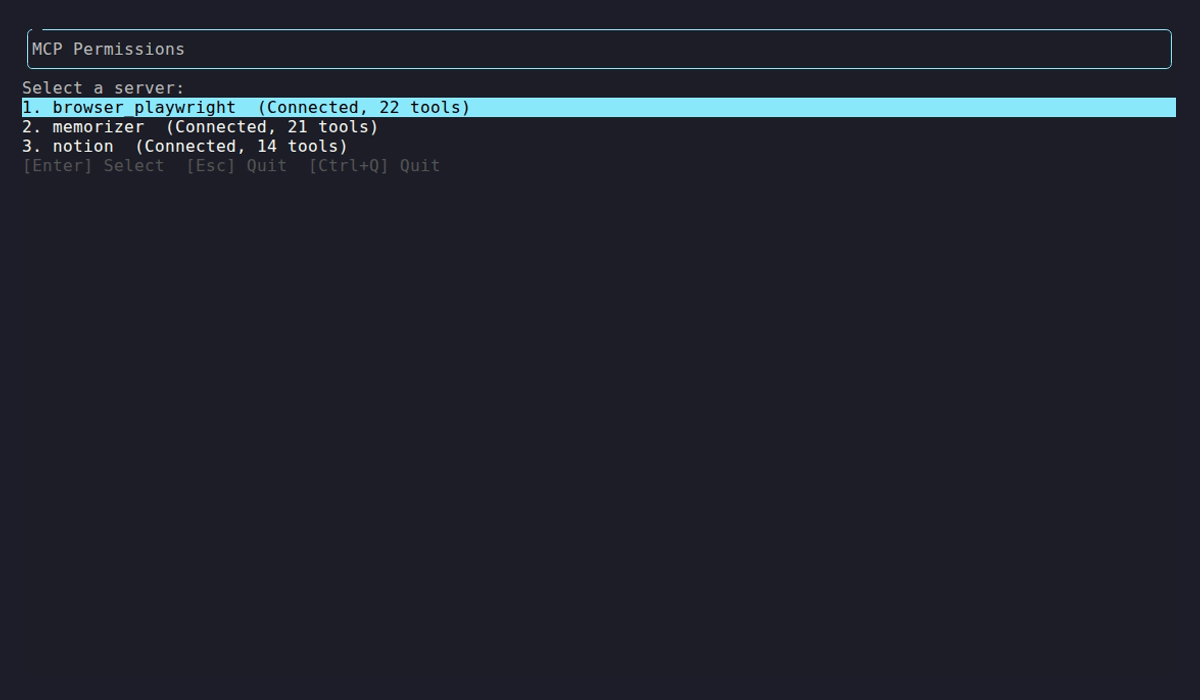
The TUI lists every server the daemon knows with its state and tool count, and Enter opens the selected server’s tool grid. This one has a single server, so the list is a single row. Esc quits from this screen, unlike the tool grid, where it goes back.
Tool grid
Section titled “Tool grid”Selecting a server opens its tool grid, shown here for the Personal audience.
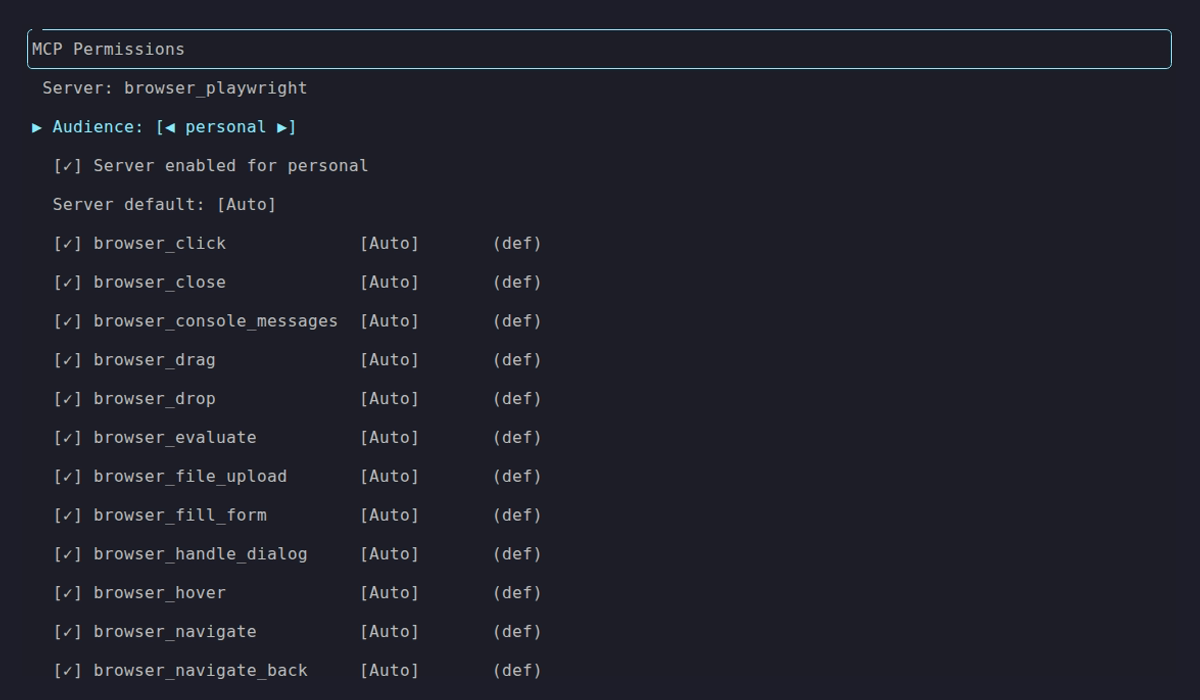
Personal with every tool granted at Auto. The footer reads [↑↓] Move [Space] Toggle [A] All [E] Disable [Enter] Done [Esc] Back. On the Team and Public audiences [E] reads Enable all while the server is off. [✓] means granted, [ ] means blocked, and the bracketed word is the approval mode: Auto runs without asking, Approval asks first, Deny blocks. (def) means the tool inherits the server default.
*unsaved* in the footer appears as soon as the grid opens, before you press anything. A server added with mcp add has empty Team and Public grant lists, and the screen counts those as pending edits. Nothing is written until you press Enter and confirm.
Switch audiences on the Audience row and the same server shows different permissions. Rows for tools that aren’t granted render dim, so a screen of grey rows means nothing is granted for that audience.
| Audience | A new server starts as |
|---|---|
| Personal | Server enabled, default Auto, every tool granted |
| Team | Server not enabled, default Approval, all tools dim and unchecked (screenshot) |
| Public | Server not enabled, default Deny (shown in red), all tools dim and unchecked |
| Key | Action |
|---|---|
↑ / ↓ | Move between rows |
← / → | Change the audience or cycle the approval mode on the current row |
Space | Toggle the row (tool grant, server access) |
A | Toggle all tools (asks before granting them all) |
E | Enable or disable the server for this audience (asks before granting every tool) |
M | Cycle the server’s default approval mode |
P | Cycle the highlighted tool’s approval override |
Enter | Done. Asks to save if there are unsaved changes (Y or Enter saves, N discards, Esc cancels). |
Esc | Back to the server list. On the server list it quits. |
Ctrl+Q | Quit |
Saving writes netclaw.json, and the daemon restarts itself to apply it.
Enabling a server for Team or Public grants every discovered tool, and replaces any trimmed grant list. So E (or Space or an arrow on the Server enabled row) and A ask first when they would grant everything:
Grant all 10 tools on 'demo' to team? [Y] Grant [N/Esc] Cancel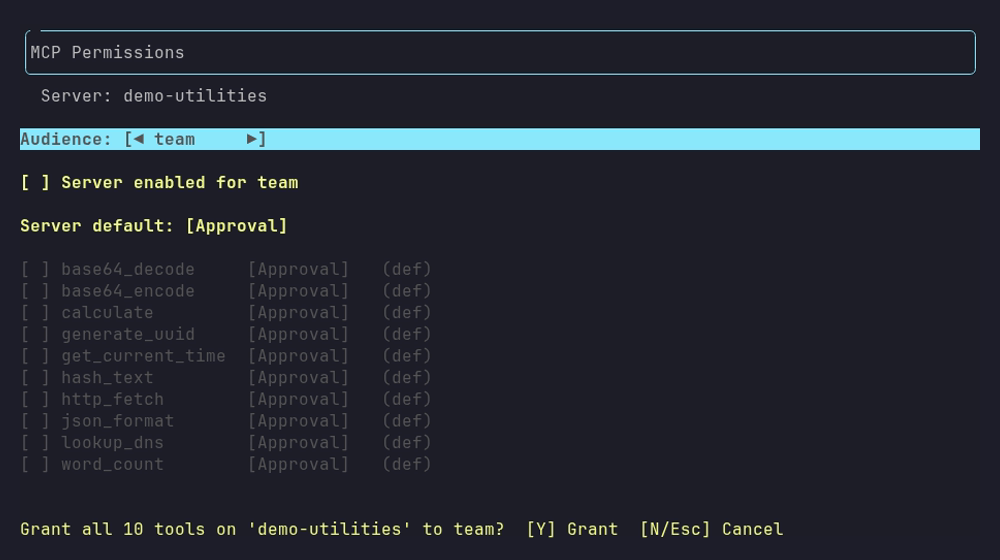
The prompt replaces the footer, and the tool rows stay greyed until you answer.
Y grants. N, Esc and Enter cancel, so a burst of Enter can’t grant by accident. Personal in the default All mode isn’t asked, because it has no grant list. A only works once the server is enabled for the audience. Press it again to clear the list when every tool is granted, and it asks before granting them all again. The footer reads [E] Enable all when enabling would grant everything, and [E] Disable or [E] Enable otherwise.
mcp tools
Section titled “mcp tools”netclaw mcp tools <server> [--audience <name>] [--snapshot] [--grant <tools>] [--revoke <tools>]Shows and scripts the same grants from the command line. Without --grant, --revoke or --snapshot it prints a table: ✓ granted, - blocked, ✱ no per-tool filtering. --grant, --revoke and --snapshot write netclaw.json.
| Flag | Description |
|---|---|
--audience <name> | personal, team or public. Required for --grant and --revoke. |
--snapshot | Write the currently discovered tools as the grant list |
--grant <tools> | Comma-separated tool names to grant. Also allows the server for that audience. |
--revoke <tools> | Comma-separated tool names to revoke |
--help, -h | Print help |
$ netclaw mcp tools pubTools for server 'pub' (2 discovered):
  Tool           Public   Team     Personal  ─────────────────────────────────────────  generate_uuid  -        -        ✱  whoami         -        -        ✱
Edit interactively: netclaw mcp permissions
A few behaviors worth knowing:
- Tool names must exist on the server, or the command errors.
- For a Personal audience in
Allmode,--revokewrites aDenyoverride for the tool and--grantremoves it. Personal doesn’t use grant lists. --grantadds the server to the audience’sAllowedMcpServersif it isn’t there, and says so (Also allowed server 'demo' for Team.). When it does, the grant list becomes exactly the tools you named, and any older entries are dropped with a message. It then prints which tools the audience can call and in which approval mode. If the server’s default for that audience isDeny(the Public default), it tells you the tool can’t be called yet.--revokeand--snapshoton an audience that doesn’t allow the server change nothing and exit1(Server 'demo' is not allowed by the Public audience profile.). Grant a tool first, or enable the server in the TUI.- New tools a server adds later stay hidden from Allowlist audiences until you grant them.
netclaw mcp tools pub --grant whoami --audience teamnetclaw mcp tools pub --revoke whoami --audience personalUpdated Team profile for 'pub': granted 1 tool(s). 1 total granted.Also allowed server 'pub' for Team.Team can now call: whoami (mode: Approval)Related pages
Section titled “Related pages”- Connect an OAuth MCP server - the full
mcp authflow, secrets and troubleshooting - MCP servers - the config schema behind these commands
- MCP tool permissions - how audience grants and approvals fit together
netclaw status- MCP connector healthnetclaw doctor- diagnose a server that won’t connect
Resources
Section titled “Resources”- Model Context Protocol specification - the protocol netclaw implements
- MCP server registry - community-maintained list of MCP servers
- MCP authorization specification - the OAuth flow behind
mcp auth - MCP TypeScript SDK - build your own MCP server
 Built by Petabridge