
netclaw daemon
netclaw daemon manages the background process (netclawd) that runs your sessions, channels and tools. Use it to start and stop a daemon you launched by hand, to install the Linux systemd service, and to pair remote devices.
netclaw daemon <subcommand>Subcommands: start Start daemon as a background process stop Stop daemon gracefully status Show daemon process status (exit 1 if not running or not ready) install Install systemd user service (Linux) uninstall Remove systemd user service (Linux) pair Generate a pairing code for remote device access devices List paired devices devices revoke <name> Revoke a paired device by name
start, stop, and status refuse when the PID in netclaw.pid is not shown to serve this home.If no Netclaw daemon of this home runs, delete <home>/netclaw.pid.If the process is a wedged daemon of this home, check it, then stop it with 'kill <pid>'.netclaw daemon help, --help, -h and a bare netclaw daemon print the usage and exit 0 without touching the daemon. There is no netclaw daemon restart. That and any other unknown subcommand print the usage and exit 1. To restart, stop and start the daemon, or use the service manager. See Restart the daemon.
start, stop, status, install and uninstall take no arguments. A trailing --help prints the usage instead of running the command.
Subcommands
Section titled “Subcommands”| Subcommand | What it does |
|---|---|
start | Starts the daemon. When the systemd user unit is installed and active or enabled, it runs systemctl --user start netclaw. Otherwise it launches netclawd as a detached process and waits 1.5 seconds. If that process exits in the window, the command prints the startup error from the crash log. Prints Daemon already running (PID n). and exits 1 when one is up. Sets NETCLAW_HOME in the process it launches. |
stop | Sends no signal until it knows the PID belongs to this home (see Home check). Tells the daemon why it’s stopping and waits up to 30 seconds for sessions to drain, then 15 more before it sends SIGKILL. When the systemd unit is running this home’s daemon, it runs systemctl --user stop netclaw instead, so the unit doesn’t bring the daemon back. |
status | Prints Daemon running (PID 33, uptime 0m 14s). plus a tip line pointing at netclaw status. Exits 1 with Daemon is not running., with Daemon process is running but <endpoint>/api/health/ready did not answer. when the process is up and the readiness probe fails, or with The local daemon address is unknown. No readiness probe was sent. Repair the local configuration and retry. when the config can’t be read. The probe goes to the endpoint your netclaw.json or NETCLAW_* variables name. Use netclaw status for connector and model health. |
install | Writes ~/.config/systemd/user/netclaw.service and config/daemon.env, enables the unit, and runs loginctl enable-linger. Linux only. It doesn’t start the service. It checks that systemctl --user works first and exits 1 without writing anything when it doesn’t. If daemon.env already exists, install changes only its PATH line and keeps every other line, such as a NETCLAW_HOME= you added. |
uninstall | Stops and disables the unit and removes the unit file and daemon.env. Your data stays. Linux only. |
pair | Prints a pairing code that expires in 5 minutes. Run it on the daemon host. |
devices | Lists paired devices with name, created and last-used time, or No paired devices. |
devices revoke <name> | Removes a device. Its next request gets 401. |
start finds the daemon binary in NETCLAW_DAEMON_PATH, then next to the netclaw binary. Both are set up for you by the install script and the Docker image.
Behavior by platform
Section titled “Behavior by platform”| Platform | start, stop, status | install, uninstall |
|---|---|---|
| Linux | Work | systemd user unit |
| macOS (Apple Silicon) | Work | Refused: Service installation is not yet supported on macOS. Run netclaw daemon start yourself. |
| Windows | Work. stop kills the process, because Windows has no SIGTERM equivalent, so there’s no graceful drain. | Refused: Service installation is currently Linux-only (systemd) |
| Docker image | start reports the supervisor’s PID, stop is undone by the supervisor | Don’t use. The image has no systemd. |
macOS and Windows have no background service. Start the daemon from a terminal or a login script and stop it with netclaw daemon stop. It doesn’t come back after a reboot on its own.
Home check
Section titled “Home check”stop doesn’t trust netclaw.pid on its own. It asks the daemon at the address in this home’s netclaw.json to confirm the PID and home. If the daemon doesn’t answer, stop reads NETCLAW_HOME from /proc/<pid>/environ. start and status apply the same test. If none of that proves the PID serves this home, they refuse:
Nothing was stopped. PID 34 is not shown to serve /tmp/h2.The daemon at http://127.0.0.1:5199 answered for another daemon or home. If no Netclaw daemon of this home runs, delete /tmp/h2/netclaw.pid. If PID 34 is a daemon of this home, check it, then stop it with 'kill 34' (Task Manager on Windows).Exit code 1. start opens with Daemon was not started. in place of Nothing was stopped., and status prints the PID line and the recovery line with no Nothing was ... prefix. /proc exists only on Linux. On macOS and Windows a daemon that doesn’t answer with its home, such as a 0.27.1 daemon, can’t be proven, so stop always refuses. Stop that daemon yourself, as the refusal says.
Inside the Docker image
Section titled “Inside the Docker image”netclaw daemon start never launches a second daemon. The entrypoint is PID 1 and owns the daemon, and a second netclawd would fight it for the lock file. With the daemon up it prints Daemon managed by container supervisor (PID 33). and exits 0. With it down it says the supervisor owns startup, tells you to check the container, and exits 1. netclaw daemon stop stops the daemon, prints The container supervisor will restart the daemon., and the supervisor starts it again two seconds later. Use docker restart <container>. The image’s health check is netclaw daemon status. See Run netclaw in Docker.
Under systemd
Section titled “Under systemd”With the user unit installed, netclaw daemon stop and start go through it. A daemon stopped with netclaw daemon stop stays stopped, even though the unit has Restart=always:
netclaw daemon stop # prints "Stopped systemd user service."netclaw daemon status # "Daemon is not running." (exit 1), and it stays that waynetclaw daemon start # prints "Started systemd user service."The CLI hands the job to the unit only when the unit is running this home’s daemon (or, for start, when it’s the default home and the unit is active or enabled). A NETCLAW_HOME other than ~/.netclaw never touches the unit. If the unit is installed but your shell has no user session bus, stop and start exit 1 with Could not determine whether systemd owns the daemon lifecycle rather than guess. Run them from a login session, or use systemctl --user. netclaw update makes the same decision before it swaps binaries. See systemd service.
Restart the daemon
Section titled “Restart the daemon”| Where it runs | Restart with |
|---|---|
| Started by hand | netclaw daemon stop, then netclaw daemon start |
| systemd user unit | systemctl --user restart netclaw |
| Docker | docker restart <container> |
Editing netclaw.json restarts the daemon for you after it drains active sessions. That includes Daemon.Host, Daemon.Port and Daemon.ExposureMode. Changes to secrets.json or to environment variables need a manual restart. If the edit leaves Models or a provider invalid, the running daemon refuses it and keeps its previous configuration. netclaw status shows config on disk not applied: <reason> until you fix the file.
Pair a remote device
Section titled “Pair a remote device”netclaw daemon pairPairing code: NGUL-9SE6Expires at: 02:50:31 (local time)
On the remote device, run: netclaw pair http://127.0.0.1:5199That endpoint line only appears in local mode, where netclaw pair accepts it. Behind a proxy or tunnel the daemon doesn’t know its public address, so it tells you to fill it in:
On the remote device, run:  netclaw pair <https-address>
The daemon does not know its public address. The daemon is exposed through reverse-proxy, and http://127.0.0.1:5199 is reachable only from this machine.Replace <https-address> with the HTTPS address this daemon is published at.
The command needs a running daemon and has to run on the daemon host. It proves that with a local key-ring proof, so it works in every exposure mode, even where a loopback connection isn’t trusted. On the other machine, run netclaw pair <endpoint> with the daemon’s real HTTPS address and enter the code. Pairing remote devices has the full walkthrough. If the daemon is down, pair prints error: Could not connect to daemon at <endpoint> and exits 1.
List and revoke devices:
netclaw daemon devicesnetclaw daemon devices revoke laptopName Created Last Used----------------------------------------------------------------------41468926c071-bootstrap 2026-10-07 15:35 2026-10-07 15:36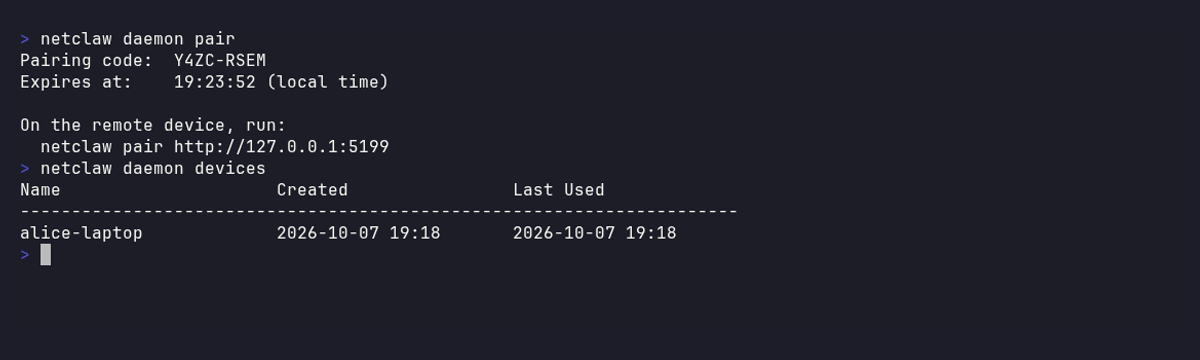
The two commands back to back: a fresh code, then the device list with one paired laptop.
The -bootstrap device is the one the daemon seeds for itself on the first non-local start.
Troubleshooting
Section titled “Troubleshooting”Failed to start daemon with a crash message
Section titled “Failed to start daemon with a crash message”Cause: start waited 1.5 seconds and the daemon had already exited. The message is the first line of the newest logs/crash-*.log, such as an invalid Daemon section or an undecryptable secret.
Fix: Fix the cause, or read the crash log in the data directory.
Cannot install the service: systemd user services are not available on this host
Section titled “Cannot install the service: systemd user services are not available on this host”Cause: systemctl --user can’t reach a user session bus, as in a minimal container or an SSH session without XDG_RUNTIME_DIR. install writes nothing and exits 1.
Fix: Install dbus-user-session, log in again, or export XDG_RUNTIME_DIR=/run/user/$(id -u). If you can’t run systemd, start the daemon with netclaw daemon start. It won’t restart after a crash or a reboot. See systemd service.
Daemon appears running (lock file held) but PID file is missing
Section titled “Daemon appears running (lock file held) but PID file is missing”Cause: Another process holds netclaw.lock, but netclaw.pid is gone.
Fix: The daemon ends itself shortly. If it doesn’t, the message names the lock file. Find the process that holds it and stop that process with kill <pid>.
PID <n> is not shown to serve <home>
Section titled “PID <n> is not shown to serve <home>”Cause: netclaw.pid is stale, names a process that belongs to another home or another program, or the home can’t be proven (macOS and Windows with a daemon that doesn’t answer).
Fix: If no daemon of this home is running, delete <home>/netclaw.pid. Otherwise check the process and stop it with kill <pid> (Task Manager on Windows).
Service installed but linger failed: Could not enable linger: Access denied
Section titled “Service installed but linger failed: Could not enable linger: Access denied”Cause: loginctl enable-linger needs permission your session doesn’t have. The unit is installed.
Fix: Run sudo loginctl enable-linger $USER. install exits 1 here even though the unit is in place.
Related pages
Section titled “Related pages”- systemd service - the unit file, logs and the upgrade routine
netclaw update- install a new release- Pairing remote devices - the full pairing walkthrough
- Exposure modes - when a daemon needs authentication from remote callers
netclaw status- runtime health beyond process status
Resources
Section titled “Resources”- systemd.service reference -
Restart=andExecStop=semantics loginctl enable-linger- keep user services running after logouttini- the init process the Docker image runs as PID 1
 Built by Petabridge