
Build your first assistant
By the end of this tutorial you’ll have a netclaw assistant that knows who you are, runs commands with your permission, remembers what you tell it across sessions, and checks a website for you on a schedule without being asked. We build it on a Linux box with a single user and no chat account, because that’s the shortest path to something real. Connecting Slack, Discord or Mattermost comes last and is optional.
Plan on 30 to 45 minutes. Most of that is waiting for the model, especially a local one. This is the long version. If you only want netclaw running, the quickstart takes five minutes, and Your first conversation explains the keys and prompts in the chat without the tutorial around them.
Every output block below comes from a real run. Yours will differ in names, timings and the exact words your model uses.
Before you begin
Section titled “Before you begin”| You need | Notes |
|---|---|
| A 64-bit Linux machine, an Apple Silicon Mac or Windows x64 | The commands below assume Linux or macOS. See Installation for Windows. |
curl, libicu and tzdata on Linux | Minimal images and containers often lack all three. See the callout in step 1. |
| About 1 GB of free memory | The daemon idles around 480 MB with local memory on. Plan for up to 800 MB. |
| An LLM provider | A hosted API key, or a server you run such as Ollama, llama.cpp or vLLM. |
Outbound access to releases.netclaw.dev and huggingface.co | The second is for two small memory models on first start. |
1. Install and set up
Section titled “1. Install and set up”Install netclaw
Section titled “Install netclaw”If you’re on a bare Ubuntu or Debian image, install the three prerequisites first. On a normal desktop or cloud VM you can skip this.
sudo apt-get updatesudo DEBIAN_FRONTEND=noninteractive apt-get install -y curl ca-certificates libicu74 tzdataDEBIAN_FRONTEND=noninteractive stops tzdata from stopping to ask for a region. libicu74 is the Ubuntu 24.04 name. Use your distro’s ICU package elsewhere. Without it, the daemon crashes at startup with Couldn't find a valid ICU package. Without tzdata, netclaw init rejects every timezone except UTC, and a reminder that names a timezone fails to schedule with Unknown time zone.
Run the installer:
curl -sSL https://releases.netclaw.dev/install.sh | bashNetclaw installer Platform: linux-x64 Install dir: /home/sam/.netclaw/bin Channel: stable
Resolved stable channel from https://releases.netclaw.dev/latest Version: 0.28.2
Downloading netclaw...######################################################################## 100.0% Verifying checksum... Extracting... Installed netclaw to /home/sam/.netclaw/bin/ Downloading netclawd...######################################################################## 100.0% Verifying checksum... Extracting... Installed netclawd to /home/sam/.netclaw/bin/
Setting up shell integration... Modified '/home/sam/.bashrc' to add netclaw to PATH.
Installation complete! Netclaw will be available in new terminal sessions.To use Netclaw in this terminal now, run: . '/home/sam/.netclaw/env'Get started: netclaw init # First-run setup wizard netclaw doctor # Verify configuration netclaw daemon install # Enable auto-start on boot (systemd)The script put the CLI (netclaw) and the daemon (netclawd) in ~/.netclaw/bin and added a line to your shell profile. That line only takes effect in new terminals, so load it into this one:
. ~/.netclaw/envnetclaw --versionnetclaw 0.28.2 (commit 7419d84, built 2026-10-29T00:09:05Z)If you see netclaw: command not found, you skipped the first line.
Run the setup wizard
Section titled “Run the setup wizard”netclaw initHere’s what to answer on each screen. Press a number key to choose from a list, and the choice is taken at once.
| Screen | What to do |
|---|---|
| Provider list | Pick your provider. For llama.cpp or vLLM pick OpenAI-compatible. |
| Endpoint (self-hosted only) | Enter the server root, for example http://llm.example.internal:8080. |
| API key | Paste the key. For a keyless local server, press Enter to skip. |
| Model | Pick your model from the list. |
| Agent name | Press Enter to keep Netclaw, or rename it. |
| Communication style | Pick one of four. 1. Concise & casual is a good default. |
| Your name, timezone | Your first name, and an IANA zone such as America/Chicago. |
| Security posture | 1. Personal. It’s one person on this machine with shell access behind approval prompts. |
Three things trip people up here:
- The endpoint field is pre-filled with
http://localhost:11434and the cursor sits at the end, so what you type lands after the default. Press Backspace until the default is gone. The timezone field behaves the same way withUTC. - The endpoint works with or without
/v1. - The step counter says “of 5” until you choose a posture. Personal ends at
Step 4 of 4.
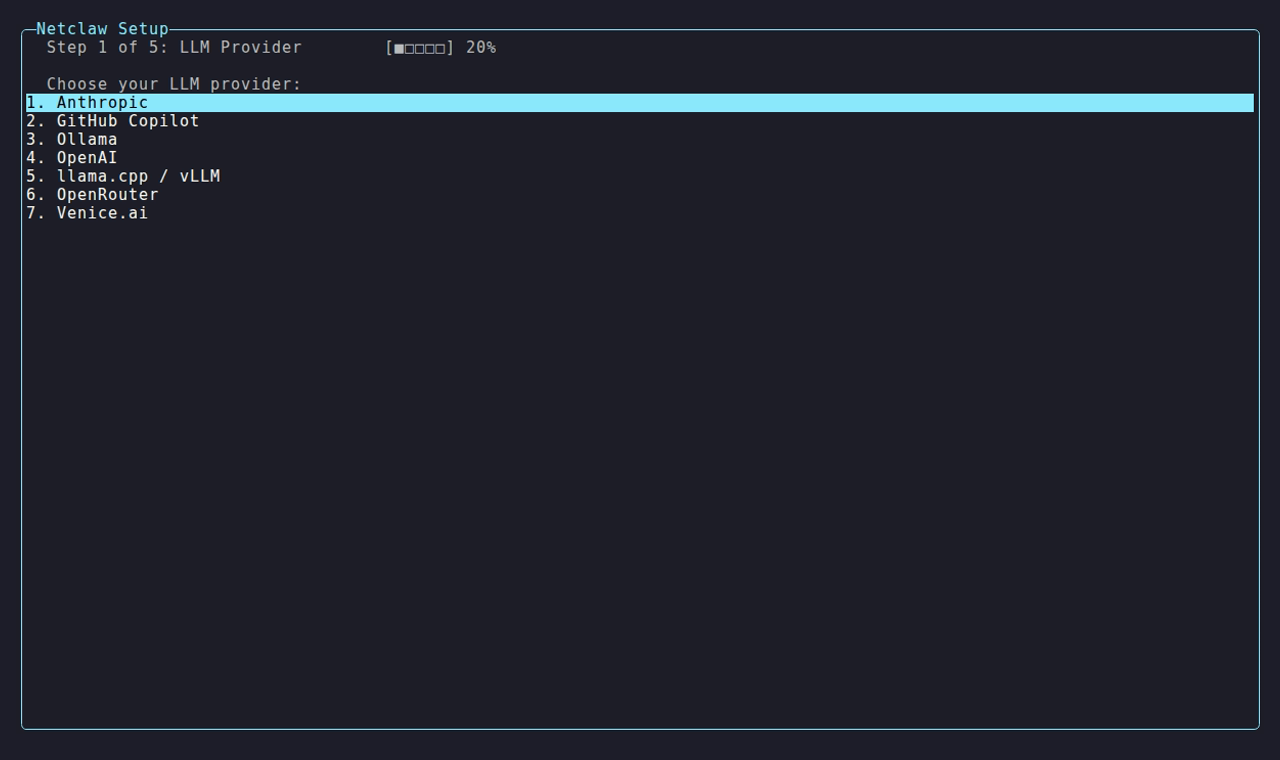
OpenAI-compatible is entry 6, the one for llama.cpp and vLLM.
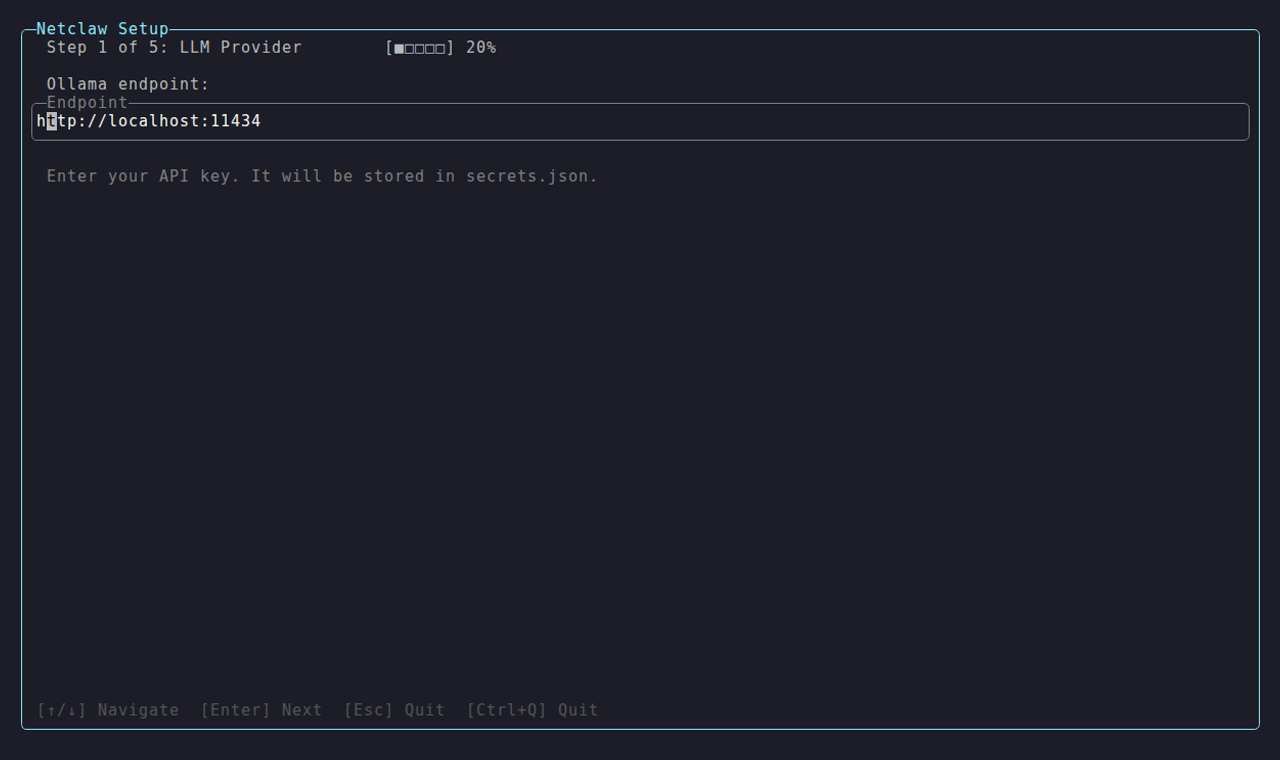
The field starts with the Ollama default filled in and the cursor at the end of it. Clear it and type your server’s address, with or without /v1.
The last screen is the health check. It writes your config, starts the daemon and checks the provider:
Step 4 of 4: Health Check✓ LLM provider configured (OpenAI-compatible (llama.cpp / vLLM / DwarfStar ds4))✓ Model selected (<your model>)✓ Memory backend (SQLite)✓ Configuration written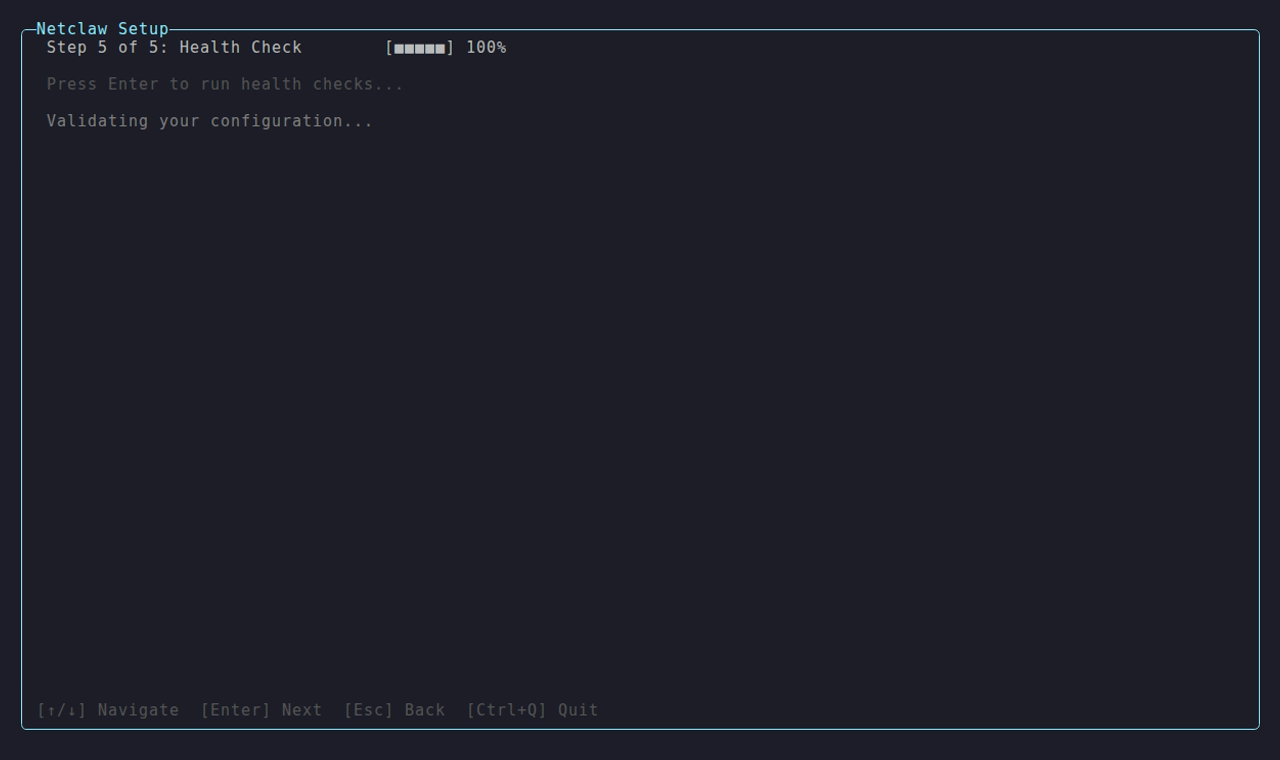
The capture was taken against an OpenAI-compatible endpoint, so the first line names that. Yours names your provider.
When it ends clean, init opens the chat for you. Leave it open for step 2.
Verify it works
Section titled “Verify it works”Open a second terminal, or press Ctrl+Q to leave the chat and come back to it later.
netclaw statusoverall: healthyversion: 0.28.2 (commit 7419d84, built 2026-10-29T00:10:12Z)daemon: PID 3644, uptime 0m 24s, endpoint http://127.0.0.1:5199persistence: Sqlitememory: sqlite (healthy)telemetry: disabledmodel: <your model> (provider: openai-compatible, context: 131,072 tokens) input: Text, Image output: Textconnectors:- discord: disabled (disabled)- mattermost: disabled (disabled)- slack: disabled (disabled)- tui: healthy (enabled)
update: up-to-date (v0.28.2)The daemon also downloaded two memory models from huggingface.co on its first start. About 129 MB, and a few seconds on a fast link:
ls ~/.netclaw/modelsms-marco-minilm-l-6-v2 snowflake-arctic-embed-m-int8Run netclaw doctor for a fuller check. A fresh install usually shows a WARN for a missing secrets.json, which is expected when your provider needs no API key.
2. Give your assistant an identity
Section titled “2. Give your assistant an identity”If init opened the chat, your assistant has already said hello. If it didn’t, run netclaw chat --onboarding and the assistant opens the conversation for you. Either way, the conversation goes the same way.
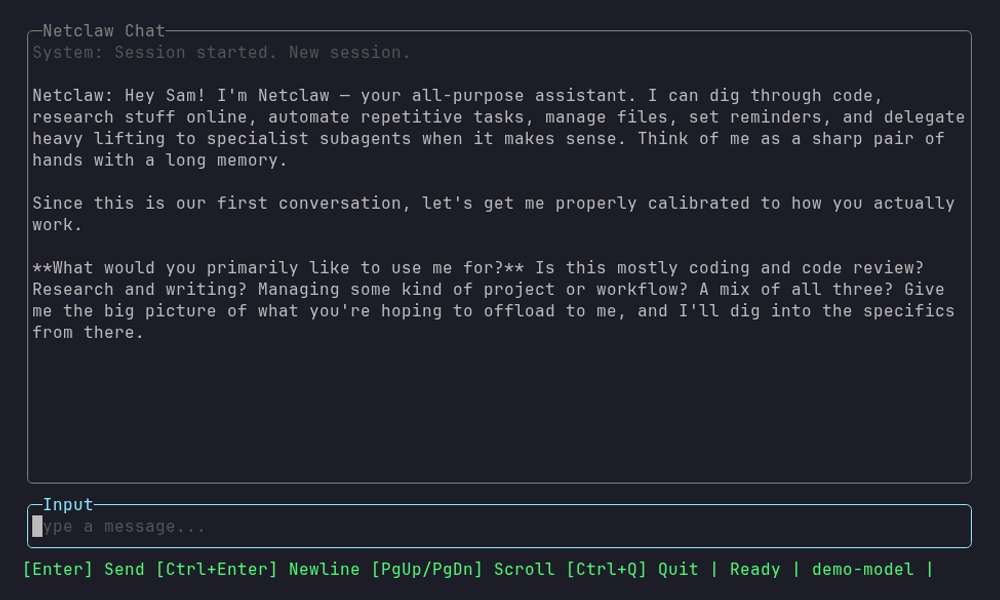
The assistant opens the conversation itself and asks the question the next step answers.
Netclaw: Hey Sam! I'm Netclaw, your all-purpose assistant. I can dig through code, research stuff online, automate repetitive tasks, manage files, set reminders ...Now let's figure out what you actually need from me.What would you primarily like to use me for?The first reply can take 30 seconds or more on a local model, because every turn carries your identity files and the tool list. The status bar shows Generating... meanwhile. You can’t cancel a running turn from the TUI today, so wait it out.
Tell it what you want in a couple of sentences. We’ll use a homelab:
I run a small homelab: three Debian boxes, Docker Compose, a Proxmox host. I want you tohelp me keep it healthy: check disk space, summarize logs, and remind me about backups.Keep answers short.It reads its current identity files, proposes a playbook (mission, recurring workflows, delegation, quality checks) and asks a few questions. Answer them, then tell it to write the playbook down:
Start with just this machine, no SSH to the others yet. The playbook looks right, go aheadand write it.It writes two files and says the playbook applies from your next message. Neither write triggers an approval prompt:
✓ file_write → Successfully wrote 534 bytes to /home/sam/.netclaw/identity/SOUL.md (0.0s) ✓ file_write → Successfully wrote 2608 bytes to /home/sam/.netclaw/identity/AGENTS.md (0.0s)Netclaw: Done. Both files are updated:- SOUL.md: your name, timezone, homelab context, and "short answers" preference- AGENTS.md: mission, three recurring workflows, skill selection, delegation rules, and quality gatesThe new playbook kicks in on your next message.Verify it works
Section titled “Verify it works”Read what it wrote. These files shape every future session, so fix anything wrong now.
cat ~/.netclaw/identity/SOUL.md# You are Netclaw
When asked your name, who you are, or to introduce yourself, state that you are Netclaw.
## Communication StyleBe concise and casual. Keep responses short and conversational. Lead with the status; details only when asked.
## User- Name: Sam- Timezone: America/Chicago- Runs a small homelab: three Debian boxes, Docker Compose, one Proxmox host- Primary use of this deployment: keeping the homelab healthy (disk checks, log summaries, backup reminders)- Prefers short answers; no raw log dumps. Summarize~/.netclaw/identity/AGENTS.md holds the mission and workflows. The model may add detail you didn’t ask for, so read it too. See context structure for how both files are used.
3. Let it use a tool
Section titled “3. Let it use a tool”Back in the chat, ask a read-only question:
How much free disk space does this machine have? ✓ shell_execute → Exit code: 0 Filesystem Size Used Avail Use% Mounted on overlay 3.6T 2.5T 931... (0.2s)Netclaw: All clear, 931 GB free on / (74% used). Under your 80% threshold.It ran df -h with no prompt. netclaw keeps a reviewed list of read-only commands that run without asking. Now ask for something that isn’t on that list:
Use curl to download https://example.com and save it as ~/example.html, then tell me how many bytes it is.This is your first approval prompt:
System: Approval required for shell_execute curl -sL https://example.com -o ~/example.html && stat -c %s ~/example.html Patterns: curl Options: Once, This chat, Always here, Always anywhere, Deny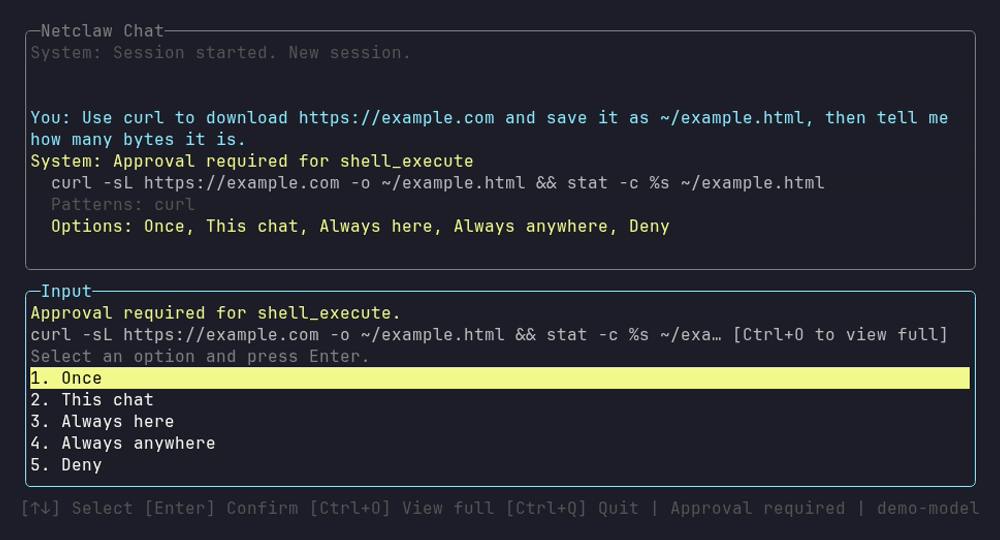
Inside a Git repository the prompt adds This repository as a sixth option. Here there’s no repository, so it has five.
Press 1 for Once. A number key takes effect immediately with no Enter. Or move the highlight with the arrow keys and press Enter, which confirms the highlighted option (Once is highlighted when the prompt opens). Prompts never time out, so you can press Ctrl+O to see the full command first. Once runs this call and saves nothing. Deny doesn’t run it, and nothing is banned, but the assistant stops, says what it wanted to do and asks how to continue.
Read the Patterns: line before any “Always” answer. curl there means the grant would cover every curl command, and Always here saves the folder the command’s paths point at (what it covers). Your first conversation walks through the prompt, and How tool approvals work lists every answer.
Netclaw: Done. ~/example.html is 577 bytes.Verify it works
Section titled “Verify it works”ls -l ~/example.htmlYou should see a file of the size the assistant reported. Because you chose Once, nothing was saved:
netclaw approvals listNo persistent approvals.4. Teach it something and see it come back
Section titled “4. Teach it something and see it come back”Still in the chat:
Remember this: my Proxmox host is called pve1 and nightly backups go to a NAS called vault, mounted at /mnt/vault. ✓ search_tools → Found 5 tool(s): ... (0.0s) ✓ load_tool → store_memory (0.2s) ✓ store_memory → Memory save confirmed: "Sam's homelab infrastructure" (checkpoint: cp-a50be59... (0.0s)Netclaw: Saved. I'll remember pve1 and the vault NAS at /mnt/vault from now on.Press Ctrl+Q to quit. Quitting leaves the session in the daemon. Start a fresh one:
netclaw chatWhere do my nightly backups go, and what is my Proxmox host called?Netclaw: - Nightly backups: NAS vault, mounted at /mnt/vault- Proxmox host: pve1You didn’t repeat yourself, and the assistant made no visible tool call. Recall injects relevant memories before the model answers. This relies on the local embedding models. With Memory.Embeddings.Enabled set to false, recall falls back to keyword search. See memory model.
Verify it works
Section titled “Verify it works”netclaw sessions --oncesignalr/98f4b55fee1b4eefab96d4a28af39262 Homelab Backup Destination and Proxmox Host [active] turns=1 last=2026-10-07 16:01signalr/0c27293335d34bc080996e396058e447 First Conversation Setup with Sam [active] turns=8 last=2026-10-07 15:56Two sessions, and the second one knew what the first one was told. You can resume any of them with netclaw chat --resume <id>.
5. Schedule a reminder that runs a tool
Section titled “5. Schedule a reminder that runs a tool”A reminder starts its own session at the scheduled time and works through a prompt. Nobody is at the keyboard, so nobody can answer an approval prompt. A call that would prompt is denied unless a saved “Always” grant already covers it.
The order matters: create, approve by running it once where you can answer, then watch one fire on its own.
Create the reminder
Section titled “Create the reminder”Ask the assistant. In the chat, name the ID so the later steps match:
Every day at 8am Chicago time, use curl to check that https://example.com is up and report the status line in one sentence. Call the reminder daily-uptime-check.Use your own timezone. The assistant usually tests the curl command first, so expect an approval prompt or two. Answer Once. Creating the reminder itself (set_reminder) doesn’t prompt:
System: Approval required for shell_execute curl -sS -o /dev/null -w "%{http_code}\n" --max-time 15 https://example.com Patterns: curl Options: Once, This chat, Always here, Always anywhere, Deny ✓ set_reminder → Reminder 'Daily uptime check: example.com' scheduled. Runs daily at 08:00 Ame... (0.0s)Netclaw: Done - reminder `daily-uptime-check` is scheduled daily at 08:00 America/Chicago (DST-aware).The wording of the reply, the exact curl flags and the title differ from run to run. The ID, the schedule and the timezone are what you check:
netclaw reminder listid status failures schedule next_fire title-------------------------------------------------------------------------------------------------------daily-uptime-check enabled 0 runs daily at 08:00 America/Chicago 2026-10-08 13:00:00Z Daily uptime check: example.comThe assistant may also want to run netclaw approvals trust-verb curl so the scheduled run can use curl. Read that prompt before you answer: approving it, even with Once, saves a standing grant for every curl command. That’s the same decision as Always anywhere in the next step. Deny it if you’d rather make that call there.
From the shell instead
Section titled “From the shell instead”Use the CLI when the assistant doesn’t create it, or in a script:
netclaw reminder create daily-uptime-check cron "CRON_TZ=America/Chicago 0 8 * * *" \ "Use curl -sSfI https://example.com | head -1 to get the HTTP status line of https://example.com and report it in one short sentence." \ --name "Daily uptime check: example.com"Reminder 'Daily uptime check: example.com' scheduled. Runs daily at 08:00 America/Chicago. Next execution: Thursday, October 8 at 1:00 PM Coordinated Universal Time (2026-10-08 13:00:00Z). Delivery: none (silent execution). ID: daily-uptime-checkRunning it again with the same ID replaces the reminder. A cron expression is UTC unless it starts with CRON_TZ=. If you’re on a minimal image without tzdata, this fails with Invalid CRON_TZ prefix. Unknown time zone 'America/Chicago'. Install tzdata and run it again. netclaw reminder list shows it as above. Add --json for the same data as a JSON array.
Approve what it needs, before it runs alone
Section titled “Approve what it needs, before it runs alone”Run the reminder once, here, where you can answer prompts. netclaw reminder run opens a chat that loads the reminder and carries it out. Inside a chat you’d type /run-reminder daily-uptime-check instead.
netclaw reminder run daily-uptime-checkThe steps are real. A reminder that deletes files really deletes them, and one that posts to a channel really posts. This one fetches a web page, so it’s safe. Unless the assistant already saved a curl grant for you, this is where the curl prompt appears again. This time choose Always anywhere, because only an “Always” answer carries over to the scheduled run. Once and This chat don’t.
System: Approval required for shell_execute curl -sSfI https://example.com | head -1 Patterns: curl Options: Once, This chat, Always anywhere, DenyNetclaw: Uptime check passed. example.com is up (HTTP 200, ~70ms).The command in the prompt is whatever your model chose to run, and any curl command matches the saved pattern. There’s no Always here in this list because the command names no path (why you sometimes see fewer options). Press Ctrl+Q to leave, then check that the grant exists:
netclaw approvals listpersonal / shell_execute Bash token-prefix "curl" anywhere added just nowA test run isn’t recorded in the reminder’s history and doesn’t change its schedule. It works only in a chat at the reminder’s own audience. On a Personal host, the CLI chat is Personal. Some models describe the reminder instead of running it. If yours does, tell it Yes, run it now for real, step by step.
Watch one fire
Section titled “Watch one fire”Eight in the morning is a long wait, so create a one-time reminder that fires in three minutes. The grant you just saved covers it.
netclaw reminder create check-example once 3m \ "Use curl to fetch the HTTP status line of https://example.com and report it in one short sentence." \ --name "Check example.com once"Reminder 'Check example.com once' scheduled. Runs once. Next execution: Wednesday, October 7 at 6:11 PM Coordinated Universal Time (2026-10-07 18:11:36Z). The reminder deletes itself after it runs or after you cancel it. Delivery: none (silent execution). ID: check-exampleWith no delivery target, nothing appears in a chat. The reminder runs in a session of its own. Wait the three minutes, then list sessions:
netclaw sessions --oncereminder/check-example/1791396696026 (untitled) [active] turns=1 last=2026-10-07 18:12signalr/4074b0a5cbd84a198a86ba4df5337a0a Daily Uptime Check for Example Com [active] turns=1 last=2026-10-07 18:08turns=0 means it hasn’t finished yet, so wait a few seconds more. Open the reminder’s session to read what the run did:
netclaw chat --resume reminder/check-example/1791396696026System: Session started. Title: Checking Example Com HTTP Status--- Previous conversation ---You: Use curl to fetch the HTTP status line of https://example.com and report it in one short sentence.Netclaw: https://example.com is up, HTTP 200 OK.--- End of history ---A finished one-shot deletes its own definition, so netclaw reminder list prints No reminders. A small end record and the run history stay for 12 days. Read them with netclaw reminder status:
netclaw reminder status check-exampleReminder: check-exampleEnabled: FalseExecuting now: FalseNext fire: not scheduledConsecutive fails: 0Skipped occurrences: 0Ended: completed at 2026-10-29 15:33:21Z (history stays until 2026-11-10 15:33:21Z)Occurrence status: DeliveredOccurrence attempts: 0Recent history (newest first): 2026-10-29 15:33:06Z okThat session is also where you’d look after a reminder fails. To have results land in Slack, Discord or Mattermost, add --delivery channel --transport <name> --address <target> once a channel is set up. See netclaw reminder.
Verify it works
Section titled “Verify it works”netclaw reminder status daily-uptime-checkReminder: daily-uptime-checkEnabled: TrueExecuting now: FalseNext fire: Thursday, October 8 at 1:00 PM Coordinated Universal Time (2026-10-08 13:00:00Z)Consecutive fails: 0Skipped occurrences: 0Terminal outcome: noneRecent history: noneThe daily reminder fires tomorrow at 8am, so its history is empty for now. Skipped occurrences should stay at 0.
6. Connect it to where you work (optional)
Section titled “6. Connect it to where you work (optional)”Everything so far ran in the terminal. To reach the assistant from chat, add a channel in netclaw config under Channels:
netclaw config| Channel | Guide |
|---|---|
| Slack | Slack setup |
| Discord | Discord setup |
| Mattermost | Mattermost setup, or run netclaw with Mattermost on Docker Compose to try it on one machine |
The same approval rules apply in a channel, and only the person who started the request can answer its prompt. Channels also set an audience, Personal, Team or Public, that decides which tools are available, and the reminders you built here belong to Personal. See the security model before you open a channel to other people.
What’s next
Section titled “What’s next”- Reduce or turn off approval prompts: tune the prompts you’ve now seen
- Run reminders, webhooks and scripts unattended: what unattended runs can and can’t do
netclaw mcp: give the assistant more tools through MCP servers- Skills: teach it repeatable procedures
- Back up, restore and move netclaw: protect the identity files, memory and secrets you just created
Related pages
Section titled “Related pages”- Quickstart: the five-minute version of steps 1 and 2
- Your first conversation: keys, slash commands and the approval prompt in detail
- Installation: every platform, update and uninstall
- Reminders: schedule types, delivery modes and failure handling
netclaw reminder: create, test and inspect reminders from the shell
Resources
Section titled “Resources”- Ollama: run a local model in minutes if you don’t have a provider yet
- Crontab guru: decode the cron expressions reminders use
- IANA time zone database: valid timezone names for
initand reminders
 Built by Petabridge